
Why use a passkey?
- Faster sign-in - No need to type a password or wait for a verification code.
- Works across your devices - Passkeys created with iCloud Keychain, Google Password Manager, or Windows Hello sync between your devices automatically.
- The most secure way to sign in - Passkeys use public-key cryptography, which means there is no password to steal, guess, or leak in a data breach.
- No codes to type - Instead of entering a 6-digit code as your second step, just confirm with your face, fingerprint, or PIN.
---
How to Access the Security Page
- Sign in to Timecloud on the web.
- Click your profile icon in the top-right corner of the screen.
- In the Profile dialog that appears, click the Security button (shown with a fingerprint icon).
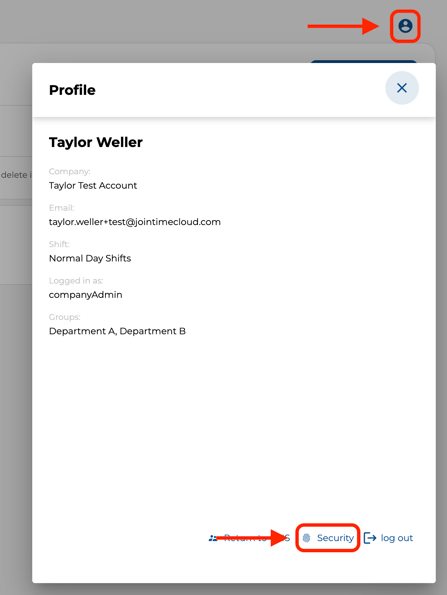
Note: The Security button only appears if your company uses Timecloud sign-in (email and password). If your company signs in through Microsoft SSO, passkeys are managed by Microsoft.
---
How to Add Your First Passkey
If you have not set up a passkey before, you will see a message: "You have not set up a passkey yet."
- Click + Add a passkey.
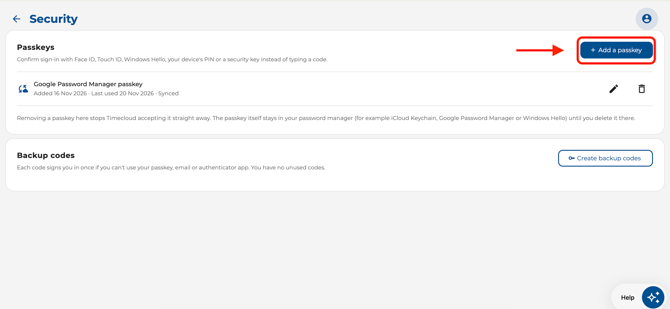
- A dialog opens to confirm it's you requesting the change. Timecloud emails a 6-digit verification code to your registered email address.
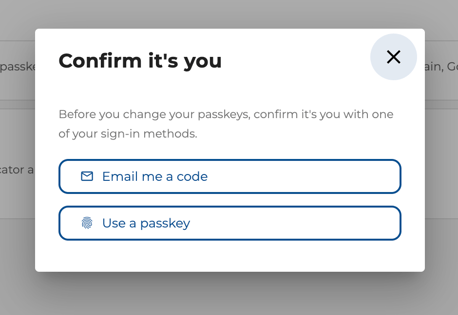
- Enter the code and click Continue.
- Choose where you want to save your new passkey
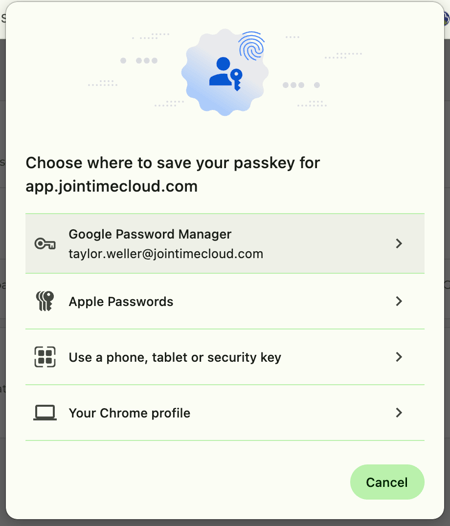
- Your browser prompts you to confirm with Face ID, Touch ID, Windows Hello, or your device PIN.
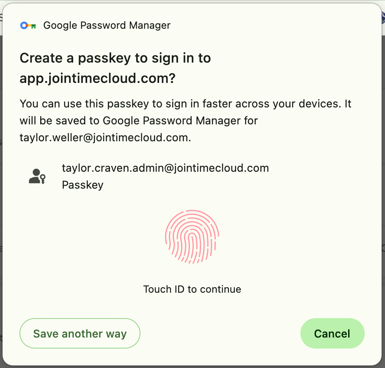
- Done - your passkey is created and ready to use.
How to Add More Passkeys
You can add passkeys on multiple devices (for example, your work laptop and your phone).
- On the Security page, click the Add a passkey button.
- A "Confirm it's you" dialog appears. Choose a verification method:
- Use a passkey - Confirm with an existing passkey.
- Email code - Receive a 6-digit code by email.
- Authenticator app - Use the code from your authenticator app.
- Complete the verification step.
- Your browser prompts you to create the new passkey with Face ID, Touch ID, Windows Hello, or your device PIN.
- The new passkey appears in your list.
---
How to Sign In with a Passkey
- Go to the Timecloud sign-in page.
- Below the email and password fields, click Sign in with a passkey.
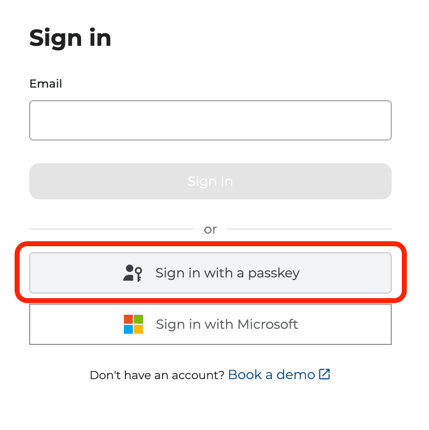
- Your browser prompts you to confirm with Face ID, Touch ID, Windows Hello, or your device PIN.
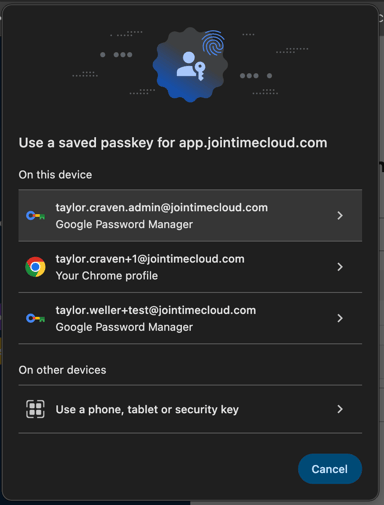
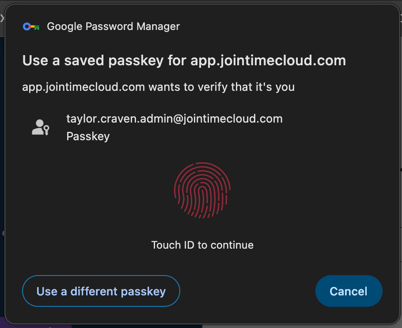
- You are signed in - no password or verification code needed.
Passkeys also work on the Timecloud mobile app (iOS 16+ and Android 9+). During the sign-in second step, choose your passkey instead of a code.
---
Managing Your Passkeys
Rename a Passkey
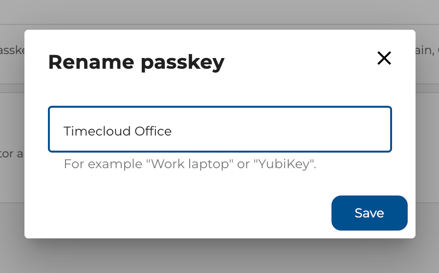
Give each passkey a clear name so you know which device it belongs to (for example, "Work laptop" or "YubiKey").
- On the Security page, find the passkey you want to rename.
- Click the edit icon (pencil) next to its name.
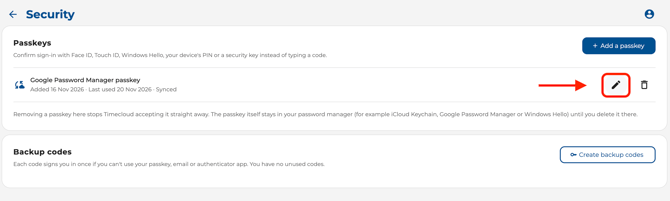
- Type a new name and click Save.
Remove a Passkey
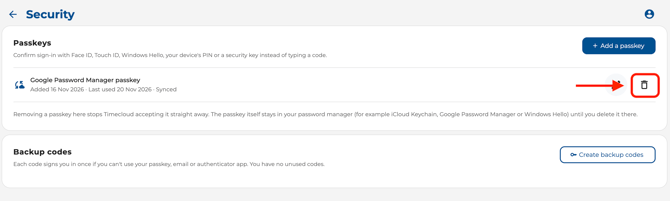
- On the Security page, click the delete icon (bin) next to the passkey you want to remove.
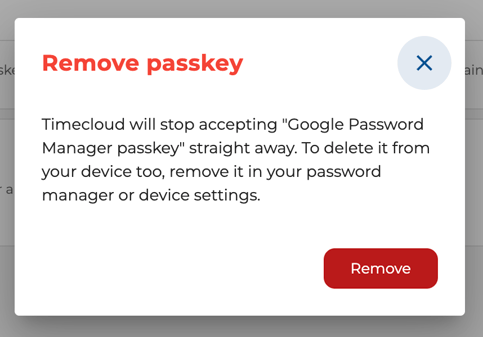
- A confirmation dialog explains that Timecloud will stop accepting this passkey straight away.
- Click Remove to confirm.
Important:
- If a passkey is your only sign-in method, you must add another passkey or a password before you can remove it.
- Removing a passkey from Timecloud does not delete it from your device. To fully remove it, also delete it from your password manager (for example, iCloud Keychain, Google Password Manager, or Windows Hello).
Backup Codes
If you sign in with a password and have set up two-step verification, you can create backup codes as a safety net.
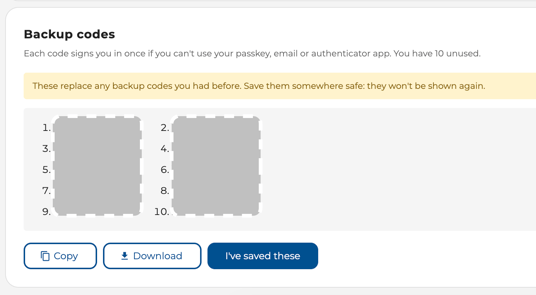
- Each code signs you in once if you cannot use your passkey, email, or authenticator app.
- On the Security page, click Create backup codes (or Replace backup codes if you already have some).
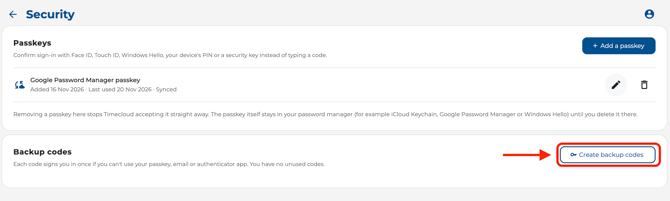
- Save the codes somewhere safe - they are only shown once.
- You can copy them to your clipboard or download them as a text file.
---
Quick Passkey Tips
- Synced passkeys (shown with a cloud icon) are backed up to your password manager and available across your devices.
- Device-bound passkeys (shown with a key icon) only work on the device they were created on.
- If your browser does not support passkeys, a notice will suggest trying Chrome, Edge, Safari, or Firefox.
- After signing in with a password, Timecloud may offer to create a passkey. Choose Create a passkey to set one up, or Not now to be reminded later.