
Steps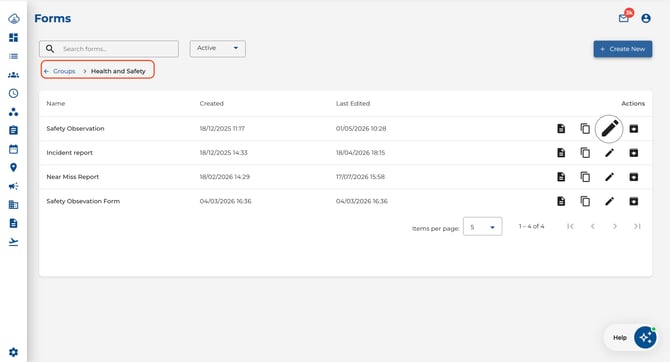
- Open the form you want to edit.
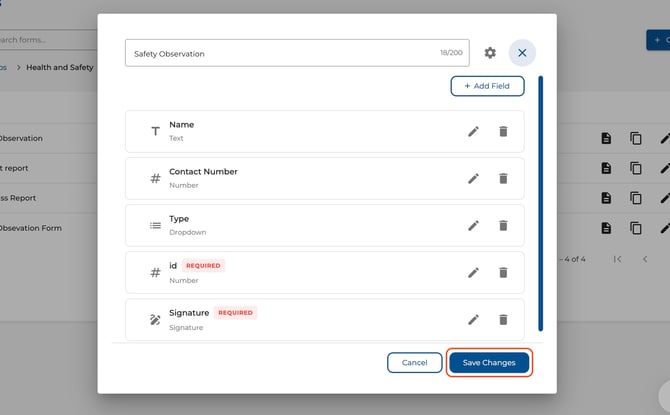
- Click Add Field and choose a field type:
- Text — free-text answer.
- Number — numeric input.
- Date — date picker.
- True/False — yes/no toggle.
- Dropdown — predefined list of choices (each option limited to 200 characters).
- Photo Upload — lets the user attach photos or documents (up to 10 files). Works on both standard and public forms.
- Signature — the employee signs directly on the form (not available on public forms).
- Section Header — a label to visually group fields into sections. Includes an optional description (max 500 characters).
- Enter a Field Label (max 200 characters). A live character counter shows your remaining allowance.
- Drag fields to reorder them using the drag handle on the left of each field.
- Toggle Required on any field that must be completed before submission.
- Click Save Changes when finished.
Character Limits
The form builder enforces character limits on field content:
- Field label — 200 characters
- Section header description — 500 characters
- Dropdown option text — 200 characters per option
A character counter appears beside each text input as you type (e.g., "85/200"). If any field exceeds its limit, the Save button is disabled until you shorten the text.
Photo Upload on Public Forms
The Photo Upload field type is supported on public forms. When a respondent fills in a public form with a Photo Upload field:
- They can upload up to 10 files per field
- Allowed types: JPG, PNG, GIF, PDF, DOC, DOCX
- Maximum 10 MB per file
- Uploaded files are scanned for security before they become downloadable
Single file upload and signature fields remain unavailable on public forms.
Tips
- Use Section Headers to break long forms into easy-to-follow sections.
- Keep forms concise — only include fields that are essential to avoid survey fatigue.
- Use Dropdown fields for standardised answers to make reporting easier.
- Character counters update in real time — watch for the limit when naming fields or adding dropdown options.