
Individual Approval
-
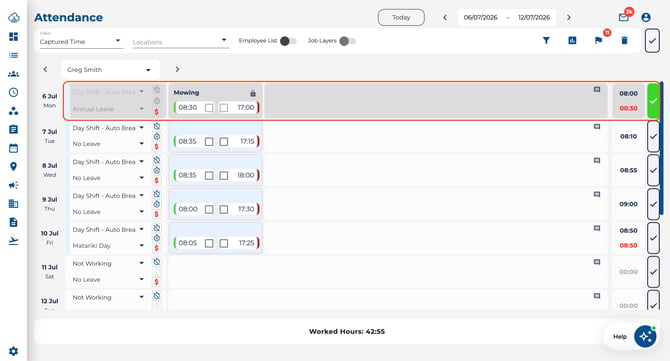
Click the tick (checkmark) on any day row to approve that specific day's timesheet.
-
Once approved, entries become read-only.
Bulk Approval
-
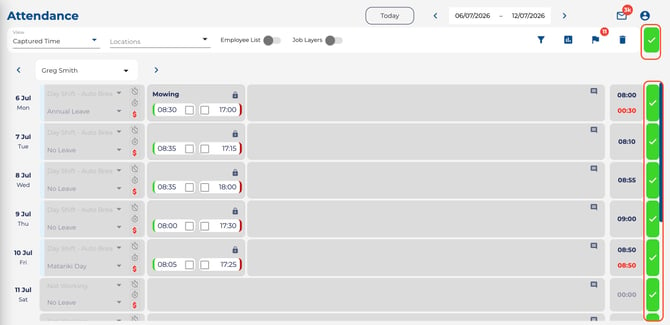
Click the Select All approve button at the top to approve all visible days at once.
-
Days that are period-locked cannot be changed.
Unapproving a Timesheet
-
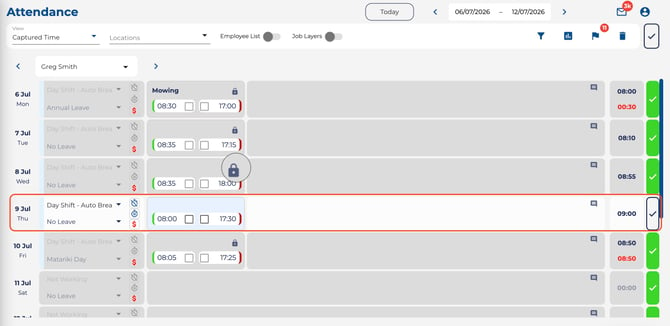
Once a timesheet row is approved, it becomes read-only. To make changes, an admin must first unapprove the day.
Job-Based Approvals (Per Check-In Pair)
For companies with Job Costing enabled, you can approve timesheets at the individual check-in pair level rather than the whole day. This gives you granular control — approve time spent on one job while keeping another under review.
Enabling Job Approvals
-
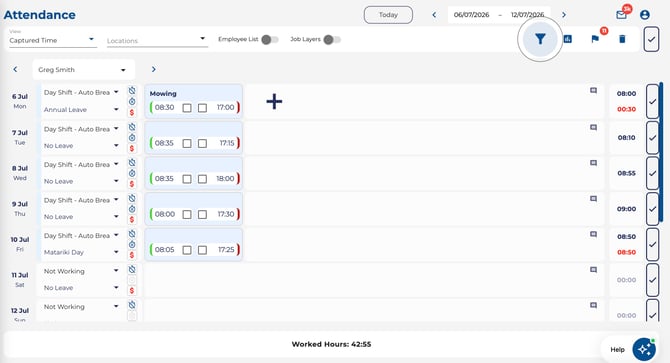
Open the Attendance page and click the Filter icon.
-
Toggle Job Approvals on.
-
Click Apply.
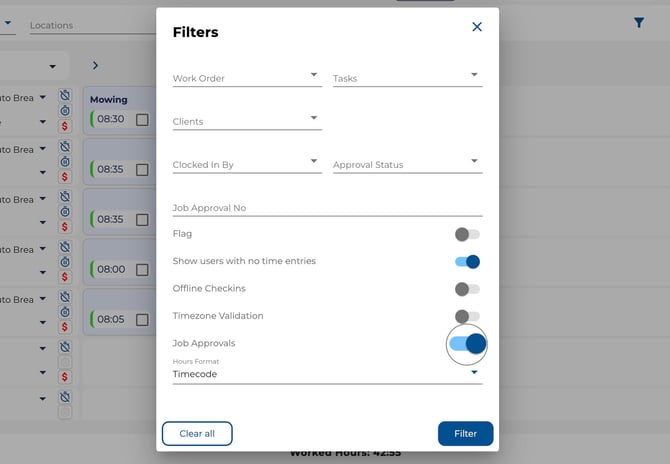
-
Your preference is saved automatically and remembered next time you log in.
Note: The Job Approvals toggle only appears if your company has Job Costing enabled.
How It Works
When Job Approvals is turned on, each complete check-in pair (a clock-in matched with a clock-out) displays its own approval tick on the right side of the pair card..jpeg?width=670&height=304&name=Image%2029-07-2026%20at%202.43%20PM%20(1).jpeg)
-
Approve a single pair — Click the tick on the right edge of any check-in pair. The tick turns green when approved.
-
Unapprove a single pair — Click the green tick again to unapprove that pair.
-
Day automatically approved — Once every check-in pair on a day is approved, the day-level row tick turns green automatically.
-
Day automatically unapproved — If you unapprove any single pair, the day-level row tick reverts.
Row Tick Behaviour
When Job Approvals is on, the row-level tick (the checkmark for the entire day) works differently:
-
Clicking the row tick approves or unapproves all eligible check-in pairs in that row at once.
-
This is a quick way to approve everything for a day without clicking each pair individually.
Bulk Approval with Job Approvals
Bulk approving (using the toolbar button) approves all visible check-in pairs across loaded employees:
-
If you have a job filter active, only the pairs matching that filter are shown — and only those pairs are approved.
-
This lets you approve time for a specific job across all employees in one action.
Tips
-
Use with job filters — Combine Job Approvals with the job item filter to review and approve time for a specific job across your team.
-
Incomplete pairs are excluded — Only complete check-in/out pairs can be approved. Open or missing entries do not show an approval tick.
-
Existing approvals are preserved — Days that were approved before enabling Job Approvals continue to work normally.
Automated Timesheet Locking
-
If your company has Automated Timesheet Locking enabled (under Settings > Time Settings), timesheets are automatically locked at the end of each pay period.
-
The lock timing is based on how many days after the period ends and the time of day configured by your admin.
-
Each employee's lock is calculated according to their own pay period, so employees on different cycles lock at the right time.
-
Once locked, time entries, shifts, and approvals for that period become read-only.
-
Company Admins are exempt and can still edit locked periods.
Tip: Approve timesheets promptly — automated locking will seal them after the configured grace period.