
Employee View
-
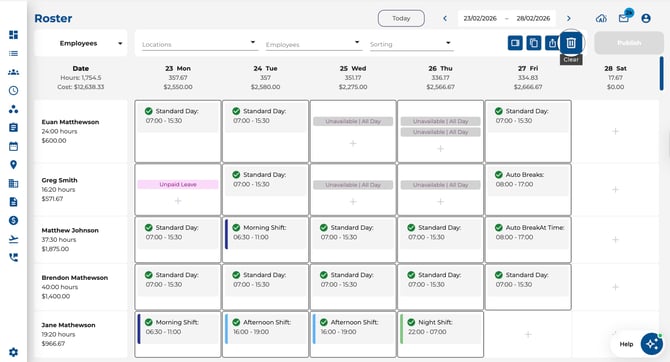
Click the Clear button in the toolbar.
-
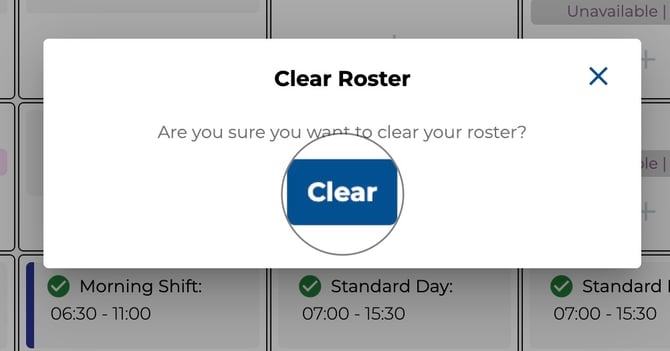
A confirmation dialogue appears — click Clear to remove all assignments for the current date range and filters.
Shift View
-
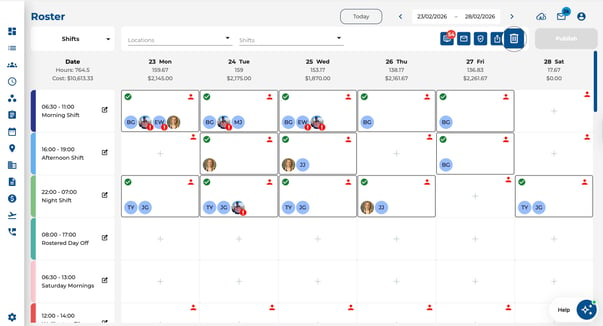
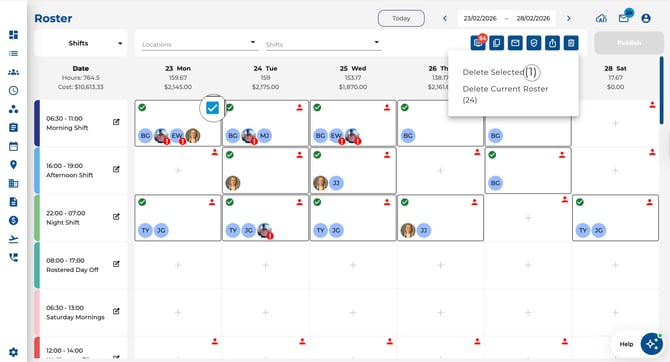
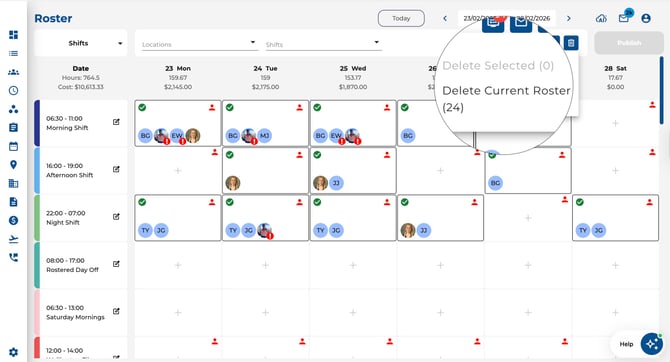
Click the Clear button — a dropdown menu appears with two options:
-
Delete Selected — Removes only the shifts you've selected (checkboxes).
-
Delete Current Roster — Removes all shifts for the current date range and filters.
-
-
Confirm the action in the dialogue that appears.