
Steps
-
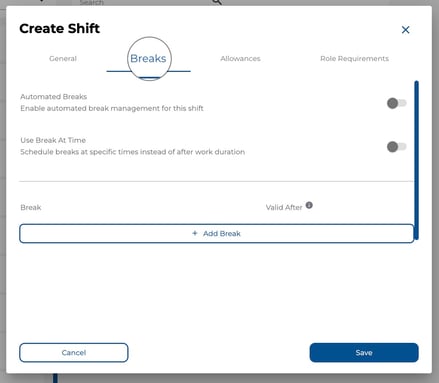
Open or create a shift and navigate to the Breaks tab.
-
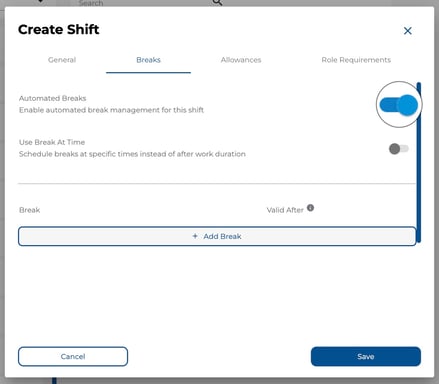
Toggle Automated Breaks on if you want breaks deducted automatically without employees clocking out.
-
Choose the break mode:
-
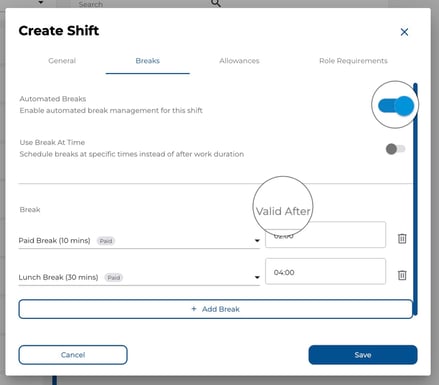
Use Break At Time OFF — Breaks become valid after a set number of worked hours (e.g. break after 4 hours).
-
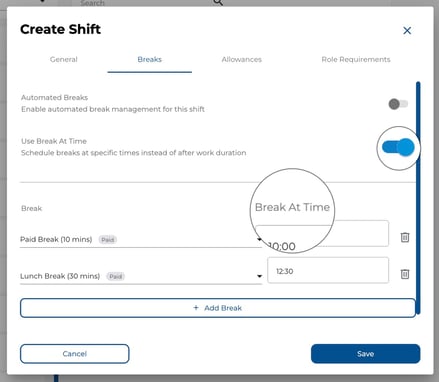
Use Break At Time ON — Breaks are scheduled at a specific clock time (e.g. 12:30 PM).
-
-
Click Add Break to add a break type row. Select the break type and set the valid-after duration or break-at time.
-
Repeat to add multiple break types if needed.
-
Click Save.
.jpeg?width=593&height=267&name=Image%2015-04-2026%20at%203.45%20PM%20(1).jpeg)
Tips
-
If you see “No Break Types Configured”, go to Settings > Break Management to set up your break types first.
-
Automated breaks are useful for compliance — they ensure breaks are always deducted even if employees forget to clock out.
-
You can add multiple break types to a single shift (e.g. a short morning break and a longer lunch break).