
Getting There
-
Click Settings (cog icon) in the left sidebar.
-
Select Job Tracking from the settings menu.
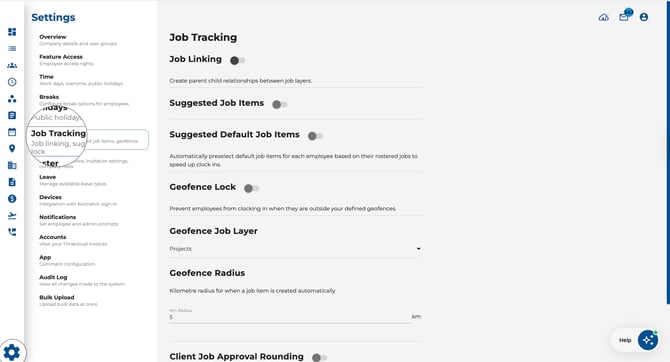
Job Linking
-
Toggle Job Linking on to create parent-child relationships between job layers.
-
This lets employees link their attendance to specific jobs or projects when clocking in.

Suggested Job Items
-
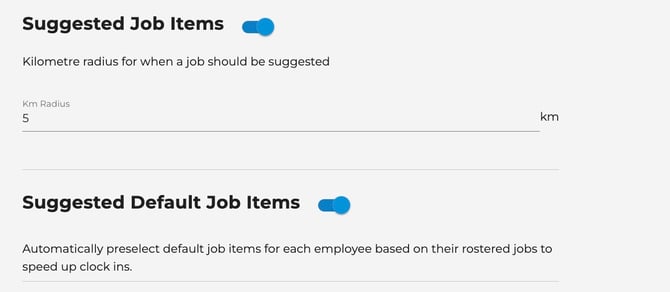
Toggle Suggested Job Items on to automatically suggest nearby jobs when employees clock in on mobile.
-
Set the Km Radius — jobs within this distance are suggested to the employee.
Suggested Default Job Items
-
Toggle Suggested Default Job Items on to automatically pre-select default job items for each employee based on their rostered jobs.
-
This speeds up the clock-in process by reducing manual selection.
Geofence Lock
-
Toggle Geofence Lock on to prevent employees from clocking in when they are outside your defined geofences.
-
This restricts mobile clock-ins to specific geographic areas.
Geofence Job Layer
-
Select which job hierarchy level drives the geofence from the dropdown.
Geofence Radius
-
Set the Km Radius for automatic job assignment — jobs within this distance are linked automatically.
.jpeg?width=670&height=332&name=Image%2017-04-2026%20at%2011.19%20AM%20(1).jpeg)
Client Job Approval Rounding
-
If your company uses client job approval, toggle Client Job Approval Rounding on to apply your global rounding rules to client job approvals.
.jpeg?width=670&height=106&name=Image%2017-04-2026%20at%2011.19%20AM%20(2).jpeg)
Saving Your Changes
-
Click Save Changes at the bottom of the page.
Tips
-
Set a sensible geofence radius — too small and employees may struggle to clock in at the edge of a site; too large and the geofence loses its purpose.
-
Suggested jobs save time for mobile workers who move between sites throughout the day.
-
Use job linking to build structured reports showing time spent per project, client, or location.