
Getting There
-
Click Settings (cog icon) in the left sidebar.
-
Select App from the settings menu.
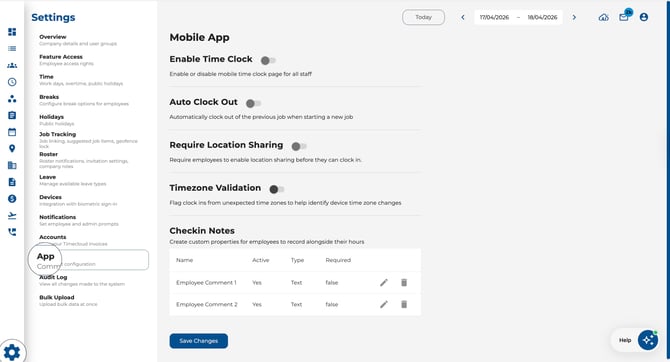
Enable Time Clock
-
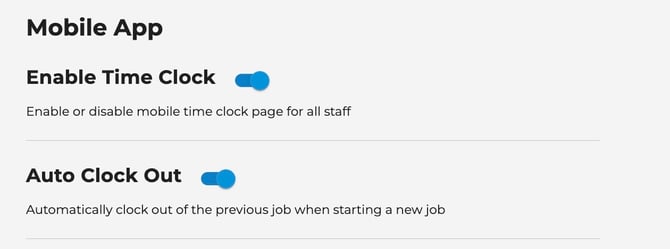
Toggle Enable Time Clock on or off.
-
When enabled, all staff can see the time clock page in the mobile app.
-
When disabled, the time clock page is hidden for everyone.
Auto Clock Out
-
Toggle Auto Clock Out on or off.
-
When enabled, starting a new job automatically clocks an employee out of their previous job.
-
Useful for teams that move between jobs throughout the day without needing to manually clock out first.
Require Location Sharing
-
Toggle Require Location Sharing on or off.
-
When enabled, employees must allow location sharing before they can clock in on the mobile app.
Additional Options (when enabled)
-
Required — When toggled on, employees cannot proceed without sharing their location. When off, they receive a prompt but can skip it.
-
Message — Customise the message employees see when prompted to share their location.
.jpeg?width=670&height=278&name=Image%2017-04-2026%20at%2010.57%20AM%20(1).jpeg)
Timezone Validation
-
Toggle Timezone Validation on or off.
-
When enabled, clock-ins from unexpected time zones are flagged.
-
Helps identify when an employee's device timezone has been changed, which could affect recorded times.

Mobile Job List Order
- Choose the default sort order for jobs on the Time Clock and Timesheet pages in the mobile app.
- Select one of the following options:
- Date Created — Jobs appear in the order they were added (default).
- A–Z — Jobs are sorted alphabetically.
- Z–A — Jobs are sorted in reverse alphabetical order.
- This setting is saved per user, so each manager or admin can set their own preference.

Check-in Notes
Depending on your plan, you may see one of two options:
Custom Fields (Advanced)
-
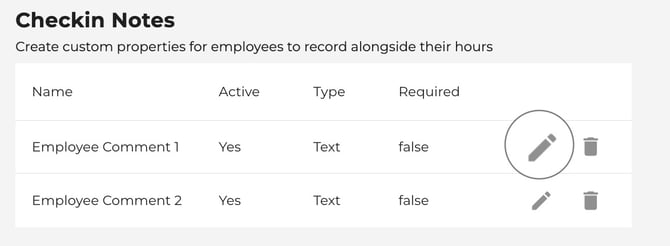
Create custom properties that employees fill in alongside their clock-in.
-
Add, edit, activate, or archive fields from the table.
-
Each field can be set as required or optional and supports different data types.
.jpeg?width=348&height=226&name=Image%2017-04-2026%20at%2010.59%20AM%20(1).jpeg)
Comment Fields (Standard)
-
Toggle Comment on to let employees add notes when clocking in.
-
Add second comment field — Enable a second comment box.
-
Mandatory comment — Require employees to enter a comment before clocking in.
Saving Changes
-
After making any changes, click Save Changes.
-
The button is only active when you have unsaved changes.
Tips
-
Enable Require Location Sharing if your business needs proof of location for compliance or billing.
-
Use Custom Fields to capture structured data (e.g. vehicle number, job site) rather than free-text comments.
-
Test timezone validation if you have remote or travelling workers to catch clock-in anomalies early.
- Set Mobile Job List Order to A–Z if your team frequently searches for jobs by name — it makes the list easier to scan.