
Steps
-
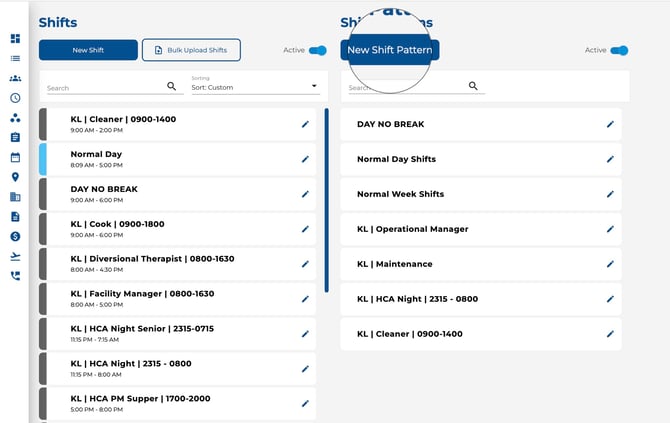
Go to the Shifts page and focus on the Shift Patterns section.
-
Click New Shift Pattern.
-
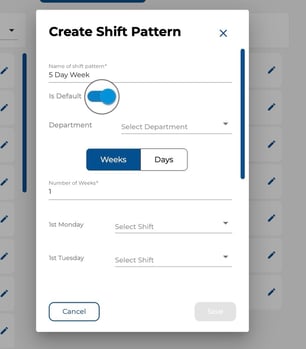
Enter a Name for the pattern (e.g. “2-Week Day/Night Rotation”).
-
Toggle Is Default on if this should be automatically applied to new employees.
-
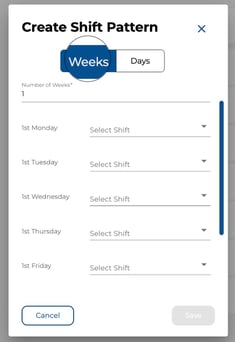
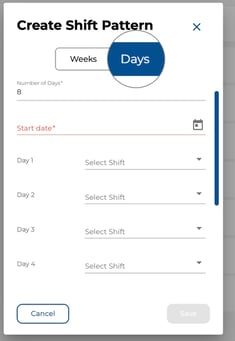
Choose the pattern length: Weeks/Days
-
Set the Number of Weeks/Days and a Start date.
-
For each day in the pattern, select the appropriate shift from the dropdown.
-
Click Save.
-
Weeks — Define the pattern in full-week blocks (e.g. 1 week, 2 weeks).
-
Days — Define the pattern by a specific number of days.
-
When creating a shift pattern, you choose between two modes: Weeks and Days. Both create a repeating cycle of shifts, but they are designed for different scheduling needs.
Weeks
Use Weeks when your schedule follows a standard weekly structure.
- The pattern is built in full-week blocks (7 days each), aligned to your company's configured start-of-week day.
- Each slot is labelled by its weekday name — e.g. 1st Monday, 1st Tuesday, … 2nd Monday, 2nd Tuesday, etc.
- Start Date is optional for a 1-week pattern but required for 2 weeks or more.
Best for: Standard Monday-to-Friday schedules, alternating fortnightly rosters, or any pattern that repeats on a weekly basis.
Example — 2-Week Rotation
A nursing home rotates staff between day and night shifts every other week:
| Slot | Shift |
| 1st Monday | Day Shift |
| 1st Tuesday | Day Shift |
| 1st Wednesday | Day Shift |
| 1st Thursday | Day Shift |
| 1st Friday | Day Shift |
| 1st Saturday | Not Working |
| 1st Sunday | Not Working |
| 2nd Monday | Night Shift |
| 2nd Tuesday | Night Shift |
| 2nd Wednesday | Night Shift |
| 2nd Thursday | Night Shift |
| 2nd Friday | Night Shift |
| 2nd Saturday | Not Working |
| 2nd Sunday | Not Working |
This 14-day pattern repeats continuously. Week 1 is always day shifts, week 2 is always night shifts.
Days
Use Days when your schedule doesn't follow a standard week — for example, rotating cycles that are shorter or longer than 7 days.
- The pattern length is the exact number of days you enter (e.g. 3 days, 4 days, 8 days).
- Each slot is labelled sequentially — Day 1, Day 2, Day 3, etc.
- A Start Date is always required so Timecloud knows when the cycle begins.
- The pattern repeats from Day 1 after the last day is reached.
Best for: Non-standard rotations like 4-on/4-off, 3-day cycles, or any pattern that doesn't align neatly with calendar weeks.
Example — 4-On / 4-Off Rotation
A security team works 4 days on, then 4 days off:
| Slot | Shift |
| Day 1 | Day Shift |
| Day 2 | Day Shift |
| Day 3 | Day Shift |
| Day 4 | Day Shift |
| Day 5 | Not Working |
| Day 6 | Not Working |
| Day 7 | Not Working |
| Day 8 | Not Working |
This 8-day cycle repeats regardless of which day of the week it falls on. After Day 8, the employee returns to Day 1.
Tips
-
Set up a default shift pattern so new employees are automatically scheduled without manual setup.
-
Use weeks for standard rotations and days for irregular schedules.