
Step 1: Enable Time Clock for Your Company
- Log in as an administrator.
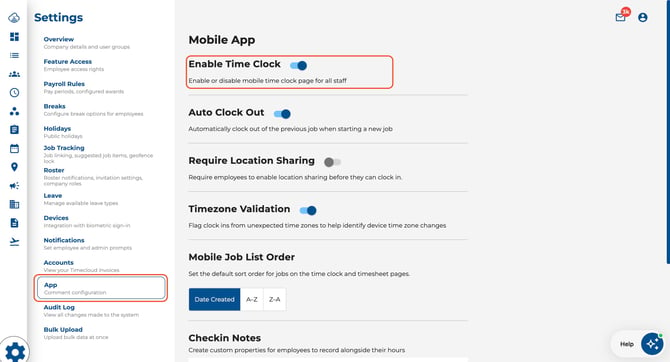
- Navigate to your company's Settings > App > Enable Time Clock
- Enable the Time Clock feature for the company.
Step 2: Enable Time Clock for Individual Employees
- Go to Human Resources > Profiles in the left-hand sidebar.
- Click on the employee you want to grant access to.
- Open the User Access tab.
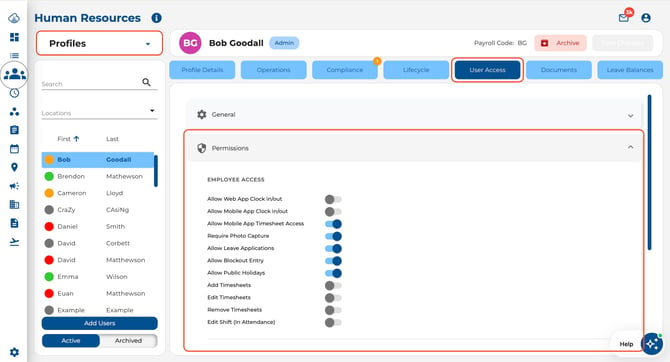
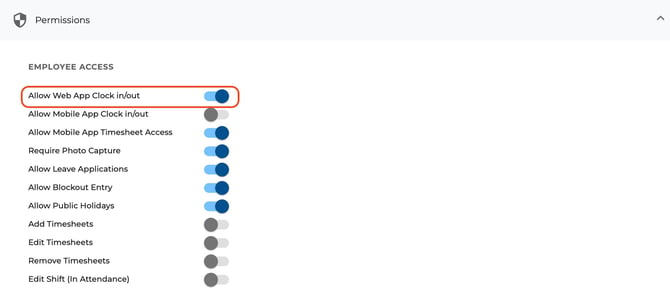
- Find the "Allow Web App Clock in/out" toggle under Employee Access.
- Toggle it on.
- Save your changes.
Good to Know
- Both levels are required — The company-wide setting must be on and the individual employee toggle must be enabled. If either is off, the employee won't see Time Clock in their navigation.
- Time Clock is independent of mobile clock-in — You can enable Time Clock without enabling mobile app clock-in, and vice versa. Disabling mobile clock-in does not prevent employees from using Time Clock in the browser.
- Bulk updates — If you need to enable Time Clock for many employees at once, check whether your plan supports bulk employee editing.