
How to Enable Web Punch
Before employees can use Web Punch, it must be enabled at two levels: company-wide and per employee. This guide walks administrators through both steps.
Step 1: Enable Web Punch for Your Company
-
Log in as an administrator.
-
Navigate to your company's Settings.
-
Enable the Web Punch feature for the company.
Step 2: Enable Web Punch for Individual Employees
-
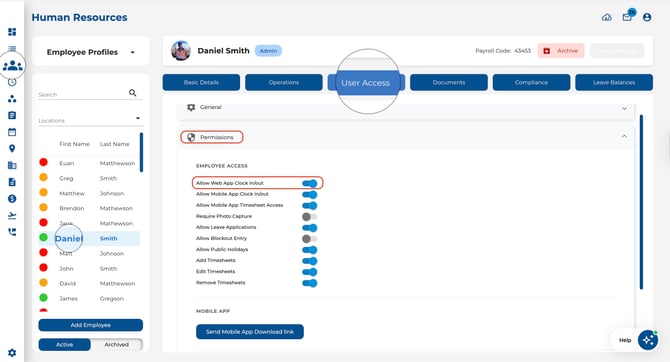
Go to Employees in the left-hand sidebar.
-
Click on the employee you want to grant access to.
-
Open the User Access tab.
-
Find the "Allow Web App Clock in/out" toggle under Employee Access.
-
Toggle it on.
-
Save your changes.
Good to Know
-
Both levels are required — The company-wide setting must be on, and the individual employee toggle must be enabled. If either is off, the employee won't see Web Punch in their navigation.
-
Bulk updates — If you need to enable Web Punch for many employees at once, check whether your plan supports bulk employee editing.