
Available Filters
|
Filter |
What It Does |
|---|---|
|
Department |
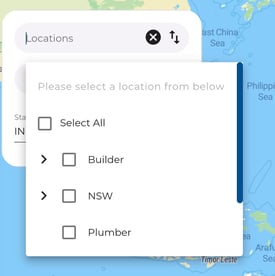
Show only employees from a specific department. Use Select All for all departments. |
|
Employee |
Search for and select one or more employees by name. |
|
Status |
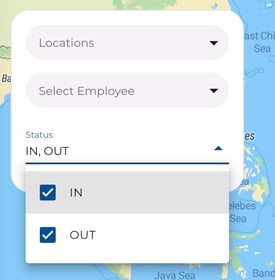
Choose IN, OUT, or both to filter by clock-in status. |
|
Date Range |
Use the date range picker in the top navigation bar to choose the period you want to review. |
How to Apply Filters
-
In the filter panel, select a Department or leave it on Select All.
-
Optionally choose specific employees from the Select Employee dropdown.
.jpeg?width=275&height=354&name=Image%2016-04-2026%20at%202.23%20PM%20(1).jpeg)
-
Pick the Status (IN, OUT, or both).
-
Adjust the date range in the top bar if needed.
.jpeg?width=275&height=249&name=Image%2016-04-2026%20at%202.24%20PM%20(1).jpeg)
-
The map updates automatically to show matching check-ins.