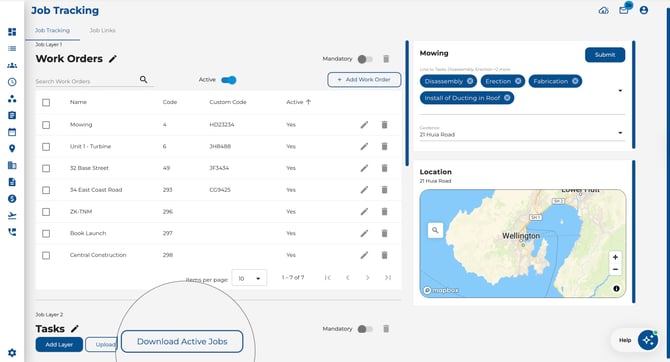
Understanding Job Layers and Items
The Job Tracking page is the central hub for managing your job structure. Navigate to it from the left sidebar.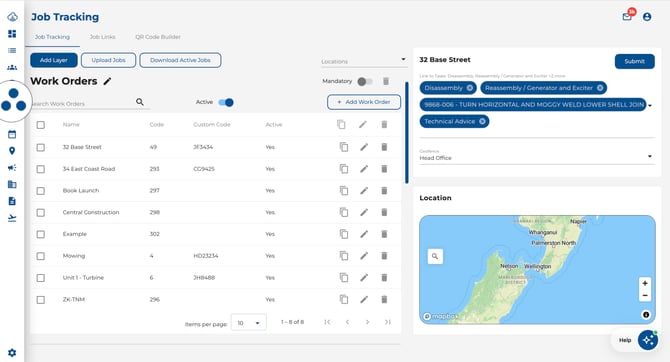
Key elements on this page
- Action buttons — At the top of the page you'll find Add Layer, Upload Jobs, and Download Active Jobs.
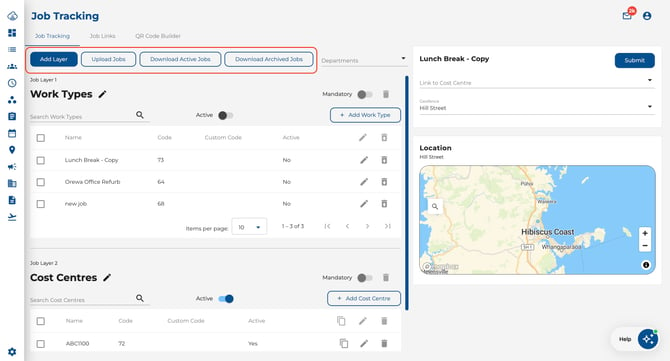
- Department filter — Use the department dropdown in the top-right corner to filter job items across all layers by one or more departments. When no departments are selected, all job items are shown.
.jpeg?width=670&height=363&name=Image%2017-07-2026%20at%202.45%20PM%20(1).jpeg)
- Job Layer headers — Each layer shows its name, a Mandatory toggle, and options to Edit or Delete the layer.
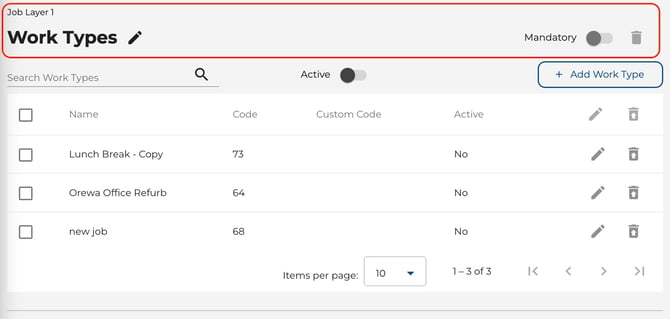
- Job Items table — Lists all items within a layer. You can filter between Active and Archived items, search by name, and paginate through results.
.jpeg?width=670&height=297&name=Image%2017-07-2026%20at%202.46%20PM%20(1).jpeg)
- Bulk action icons — When checkboxes are enabled, the table header's actions column shows icons for Duplicate, Edit, and Archive/Unarchive. These are
disabled until you select at least one item.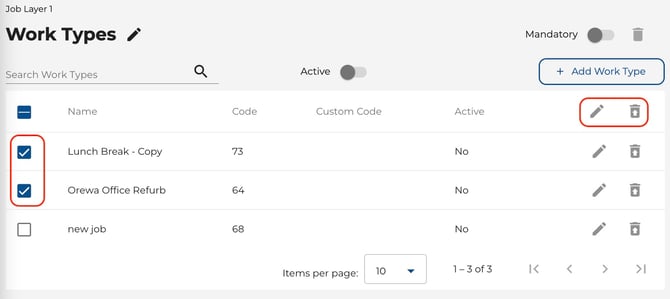
How to Filter Job Items by Department
You can narrow the job items shown on the page to only those assigned to specific departments.
- Navigate to Job Tracking from the left sidebar.
- Click the Department dropdown in the top-right corner of the page.
- Select one or more departments from the list.
- The job items across all layers will instantly filter to show only items that match the selected departments.
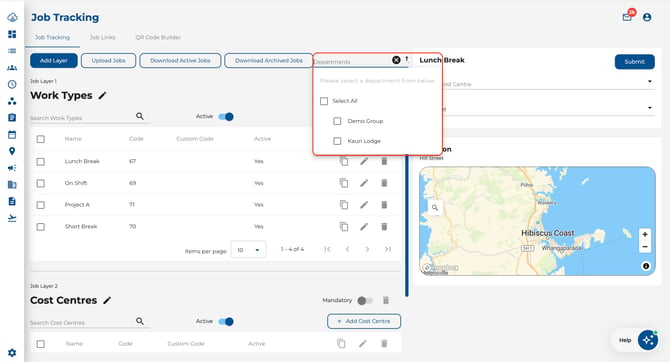
Tip: Leave the department filter empty to see all job items. The filter applies to every layer on the page at once, so you can quickly focus on the jobs relevant to a specific team.
Job Item Visibility and Department Permissions
Timecloud automatically filters the job items you see based on your role and department permissions:
- Company Admins — See all job items across every layer, regardless of department assignments.
- Sub-Admins — See job items that match their assigned department permissions, plus any job items with no departments assigned.
Note: This automatic filtering works alongside the manual Department dropdown filter. If you cannot see a job item you expect, check with your company admin that your department permissions include the relevant departments.
How to Add a Job Layer
-
Navigate to Job Tracking from the left sidebar.
-
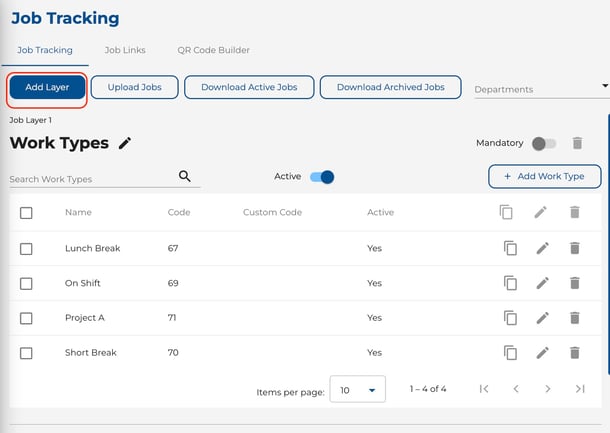
Click the Add Layer button at the bottom of the page.
-
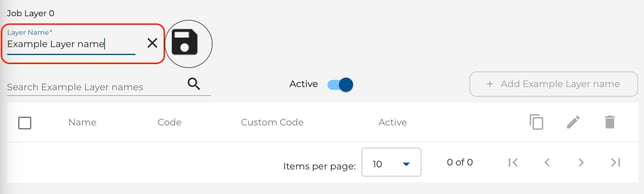
Enter a descriptive name for the layer (e.g. "Client", "Project", "Task").
-
Click the Save icon to confirm.
Note: Your company has a maximum number of job layers. If you have reached the limit, a message will appear. Contact Timecloud support to increase this limit.
How to Edit or Delete a Job Layer
-
Rename a layer: Click the Edit (pencil icon) next to the layer name, update it, and click Save.
-
Delete a layer: Click the Delete button. A layer can only be deleted when it contains no job items — archive or remove all items first.
-
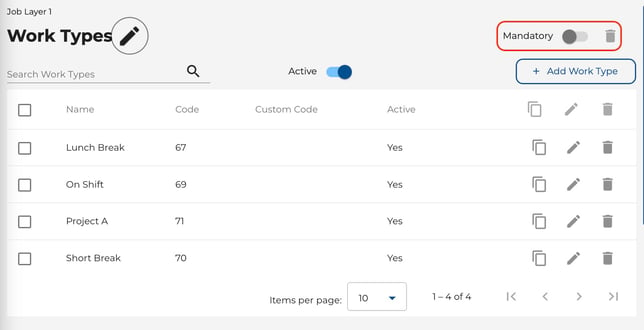
Set as Mandatory: Toggle Mandatory on or off. When enabled, employees must select a job from this layer when clocking in. This saves automatically.
How to Add a Job Item
-
Find the layer you want to add an item to.
-
Click the + Add button in that layer’s table header.
.jpeg?width=644&height=329&name=Image%2017-07-2026%20at%203.16%20PM%20(1).jpeg)
-
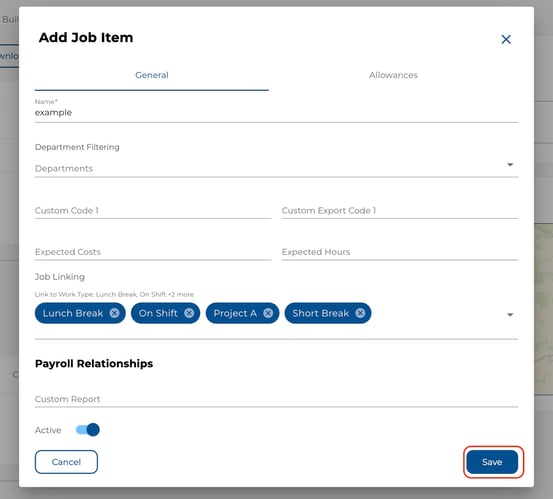
Fill in the details in the Add Job Item dialogue:
|
Field |
Description |
|---|---|
|
Name |
A descriptive name for the job item (required). A confirmation prompt appears if the name already exists in the same layer. |
|
Department Filtering |
Restrict visibility to specific departments so only relevant staff see this item. |
|
Custom Code 1 / Custom Export Code 1 |
Optional reference codes for reporting or payroll integration. |
|
Expected Costs |
Budget amount for this job item. |
|
Expected Hours |
Estimated hours for this job item. |
|
Job Linking |
Link to parent or child items in other layers (when Job Linking is enabled in Settings). |
|
Active |
Toggle whether the item is immediately available. Defaults to on for new items. |
|
Payroll Relationships |
Map this job to external payroll provider codes (when configured). |
How to Edit a Job Item
-
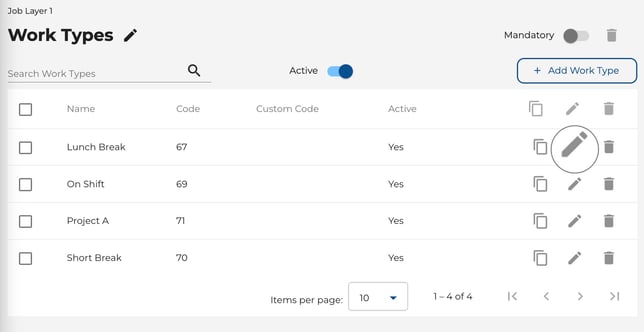
Click the Edit (pencil icon) next to the job item in the table.
-
Update any fields in the Edit Job Item dialogue.
-
Click Save to apply your changes.
.jpeg?width=553&height=469&name=Image%2017-07-2026%20at%203.18%20PM%20(1).jpeg)
How to Archive or Restore Job Items
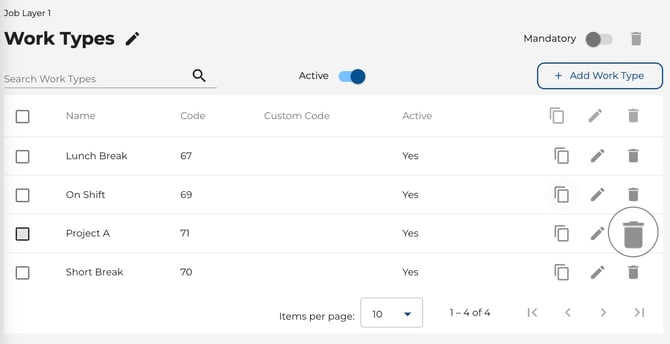
- Archive a single item: Click the Delete (trash icon) next to the item. The item moves to the archived list and is no longer available for selection.
- Bulk archive: Select multiple items using the checkboxes, then click the Archive (trash icon) in the table header's actions column.
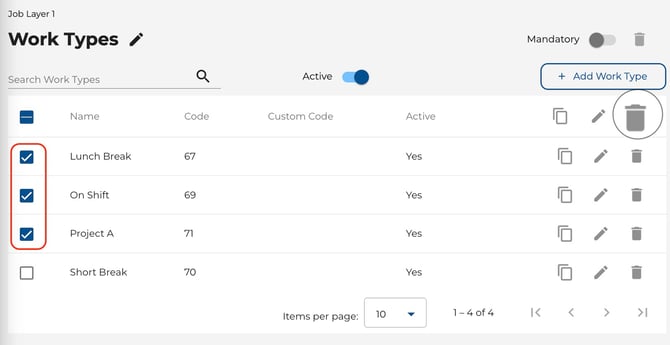
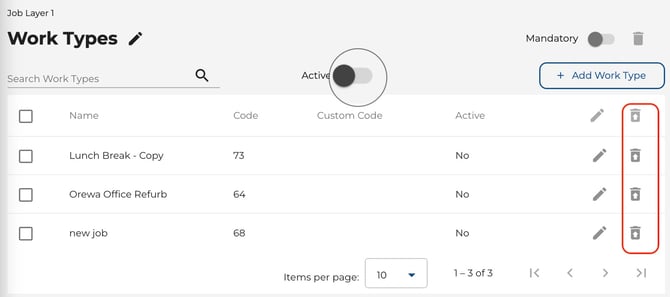
- Restore archived items: Toggle the Active switch off to view archived items. Select the items you want to restore and click the Unarchive (restore icon) in the table header's actions column.
Archiving items with parent links
If the job item you are archiving is linked to active parent job items in another layer, Timecloud will show a confirmation dialogue before proceeding.
- The dialogue is titled "Job is linked to parent jobs" and tells you how many active parent items reference this job.
- Click Proceed anyway to archive the item. Timecloud will automatically unlink it from all parent job items that referenced it.
- Click Cancel to keep the item active and its parent links intact.
- This confirmation applies to both single and bulk archive actions. When bulk-archiving, items with active parent links are grouped together in one prompt so you can confirm them all at once.
Payroll period warning
When you archive a job item that is still used on attendance records in the current pay period, Timecloud shows a warning dialogue before proceeding.
- The dialogue is titled "Payroll may fail for this pay period" and lists the affected job items along with the pay period dates.
- Click Archive anyway to proceed with archiving. The payroll export for that period may omit the job mapping for those items.
- Click Cancel to keep the items active and avoid any payroll impact.
- This warning applies to both single and bulk archive actions.
Tip: Wait until a pay period is finalised before archiving job items that are still in use. This ensures your payroll export includes all job costing data.
Download Job Items
To export your current active job items as a CSV file, click Download Active Jobs on the Job Tracking page. This is useful for reviewing your data or as a template for bulk uploads.