Step-by-Step
-
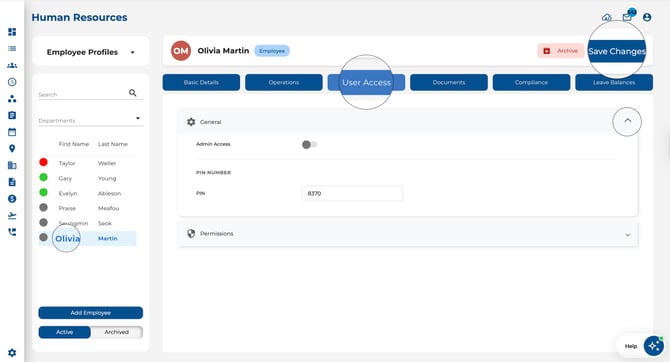
Open the Employees page and select an employee.
-
Click the User Access tab in their profile.
-
Adjust the settings in each panel as needed.
-
Click Save Changes when done.
Sections
General Panel
-
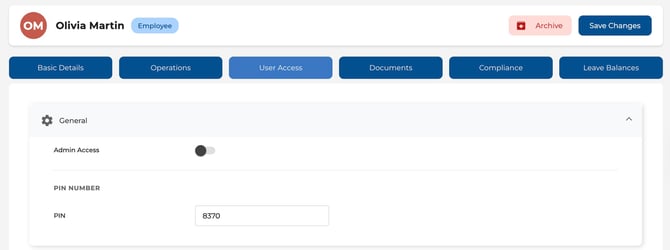
Admin Access — Toggle on to grant administrator access to the web app.
-
PIN — Set or update the employee’s 4-digit clock-in PIN.
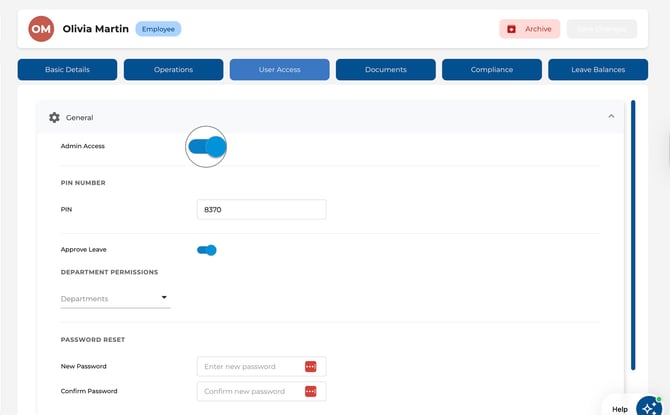
When Admin Access is turned on:
-
Approve Leave — Allow this admin to approve leave requests (requires admin access and leave approval mode).
-
Department Permissions — Control which departments this admin can view and manage.
-
Direct Reporting Lines — Enable direct reporting relationships (company admin only).
-
Password Reset — Set a new password for admin-level employees.
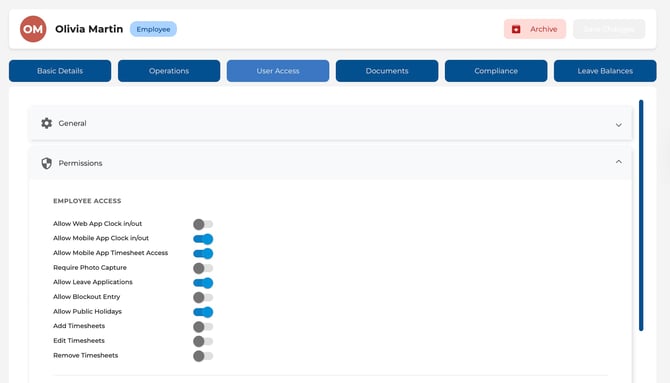
Permissions — Employee Access
-
Allow Web App Clock in/out — Let the employee clock in/out from the web app.
-
Allow Mobile App Clock in/out — Let the employee clock in/out from the mobile app.
-
Allow Mobile App Timesheet Access — Give timesheet access on mobile.
-
Require Photo Capture — Require a photo when clocking in.
-
Allow Leave Applications — Let the employee submit leave requests.
-
Allow Blockout Entry — Let the employee enter availability/blockout periods.
-
Allow Public Holidays — Show public holidays to the employee.
-
Add/Edit/Remove Timesheets — Control whether the employee can modify their own timesheets.
Mobile App
-
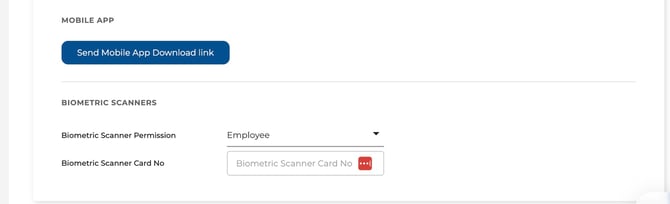
Send Mobile App Download link — Click this button to send the employee a link to download the Timecloud mobile app.
Biometric Scanners
-
Biometric Scanner Permission — Set the access level for biometric scanners.
-
Biometric Scanner Group — Assign a scanner group (if applicable).
-
Biometric Scanner Card No — Enter the employee’s scanner card number.