
Opening the Page
-
Click Attendance in the sidebar to open the timesheet view.
Choosing a Date Range
-
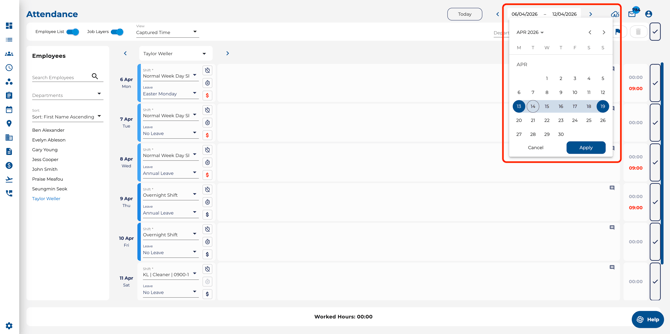
Use the date range selector in the header to pick the dates you want to review — a single day, a week, a full pay period, or a custom range.
Single-Day vs. Multi-Day Mode
-
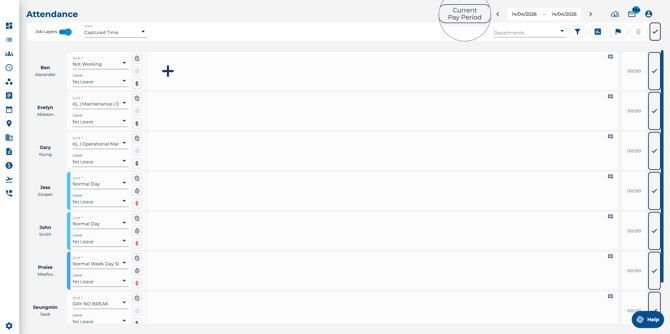
Today Button— Shows all employees' time entries for that day, side by side.
-
Current Pay Period Button— Shows one employee's entries across multiple days. Use the employee dropdown (with left/right arrows) to switch between team members.
Using the Employee List Sidebar
-
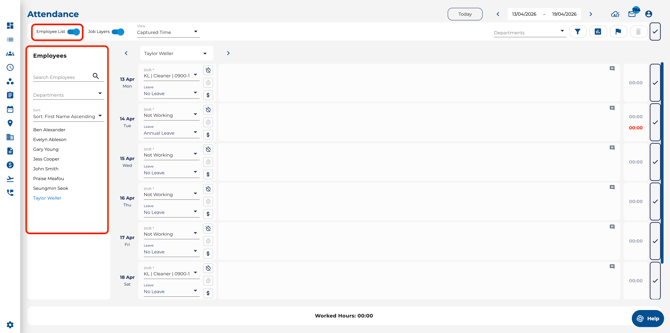
Toggle the Employee List switch in the toolbar to open a quick-select sidebar on the left.
-
Search by name, filter by department, and click an employee to jump to their timesheet.
Tip: The Employee List sidebar is great for large teams — find any team member in seconds.