
Opening the Reports Page
-
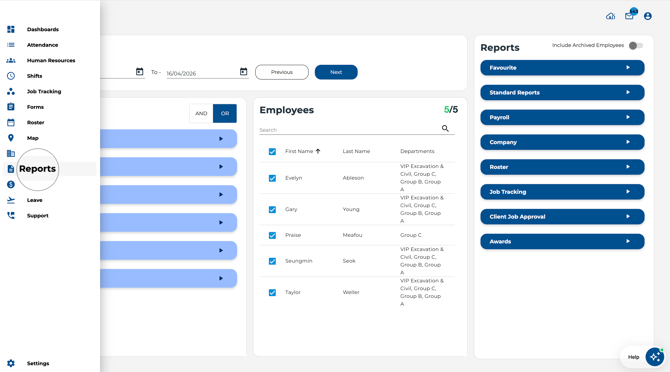
Click Reports in the main navigation menu.
-
The page loads with your current pay period pre-selected and all employees checked by default.
Page Layout
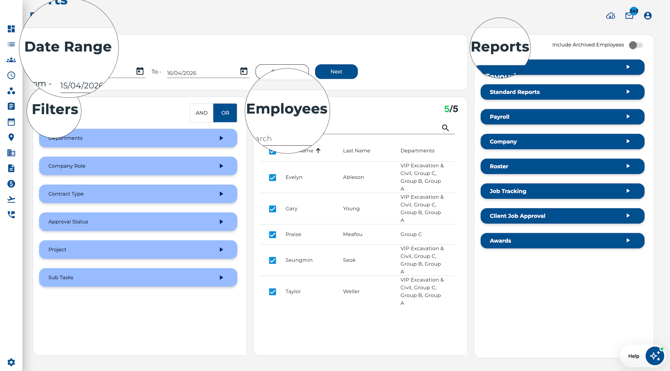
The Reports page is split into two main columns:
Left Column
-
Date Range — Pick the start and end dates for your report.
-
Filters — Narrow down which employees are included.
-
Employees — View and select the employees to include in your report.
Right Column
-
Reports — Browse all available reports, organised into collapsible groups.
-
Include Archived Employees toggle — Include former employees in your exports.
Setting a Date Range
-
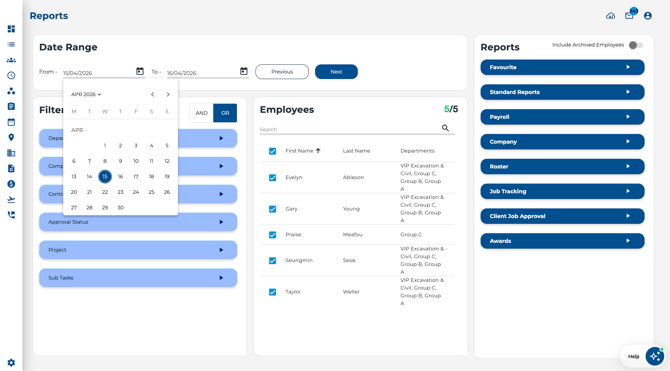
In the Date Range card, click the From date field and select a start date.
-
Click the To date field and select an end date.
-
To quickly move between pay periods, use the Previous and Next buttons.
Browsing Report Groups
-
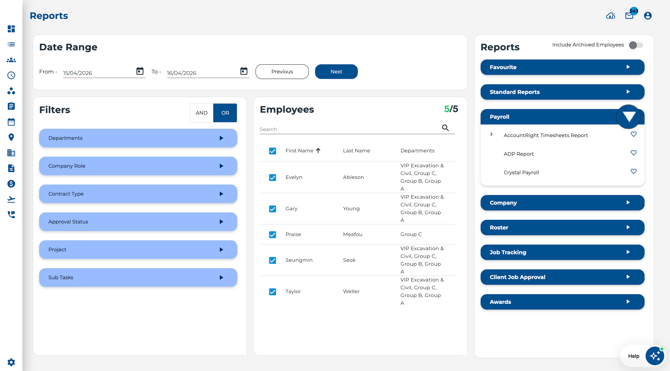
Reports are organised into collapsible groups (e.g. Attendance, Payroll, Leave).
-
Click a group header to expand or collapse it.
-
Your Favourites group always appears at the top of the list.
Quick Tips
-
All employees are selected by default — you only need to adjust selection if you want a subset.
-
The date range defaults to your current pay period — use the Previous / Next buttons to jump quickly.
-
Collapsible groups help keep the list tidy — expand only the groups you need.