
Steps
-
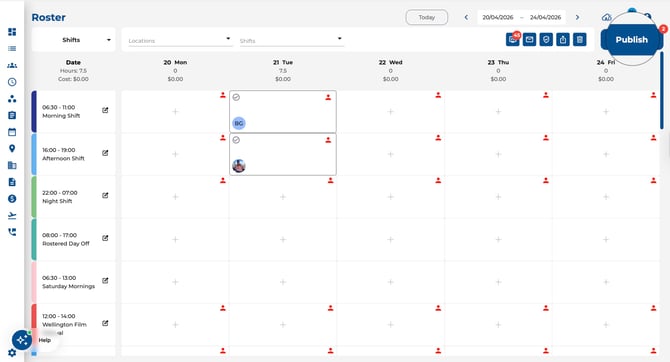
Click the Publish button in the toolbar (top-right).
-
A confirmation dialogue appears — click Publish to confirm.
.jpeg?width=670&height=314&name=Image%2016-04-2026%20at%2010.20%20AM%20(1).jpeg)
-
A success message appears: "Roster published successfully."

When the Publish Button Is Disabled
- All published — The button is disabled when every shift in the period is already published.
- Work End Date conflict — The button is disabled when any shift in the period assigns an employee past their Work End Date. Look for the amber warning icon on the affected tile(s), remove the employee from those shifts, then try again. SeeHow Work End Dates Affect the Roster for details.
Good to Know
-
The Publish button shows a badge with the number of unpublished changes.
-
Publishing respects your current filters — only filtered employees or shifts are published.
-
Tiles marked with a green check icon are already published. Tiles with an outline check have unpublished changes.
