
When Does the Department Dropdown Appear?
The Department dropdown only appears when your administrator has configured attendance filtering to require department selection at check-in. If you don't see this dropdown, your company either doesn't use department-level filtering or handles it automatically.
How to Select a Department
- Open Time Clock from the left-hand sidebar.
- Look for the Department dropdown on the clock-in card.
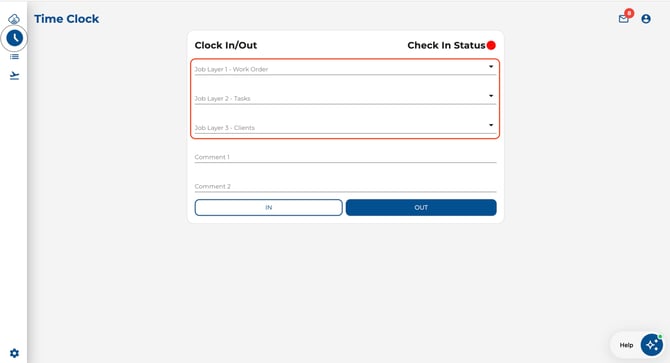
- Click the dropdown and select the department you are working under for this shift.
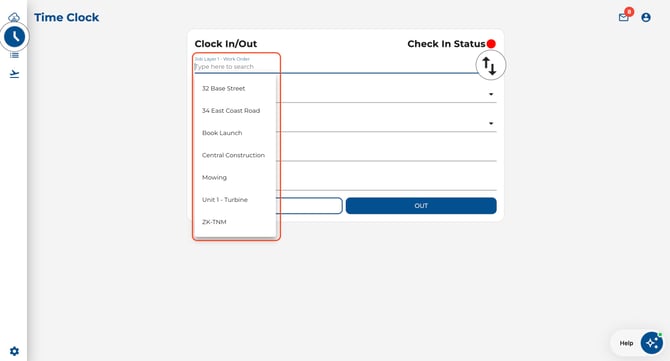
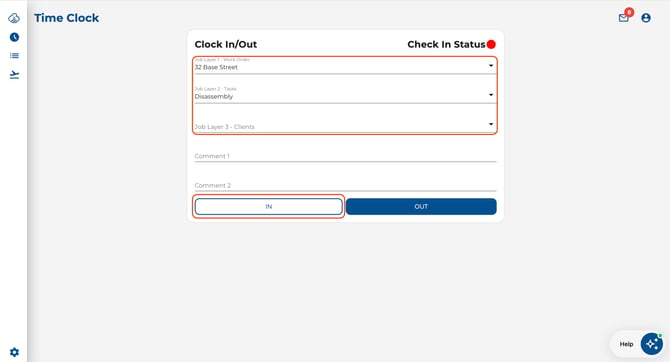
- Fill in any other required fields (job layers, comments) if applicable.
- Click IN to clock in under the selected department.
Good to Know
- The department you select applies only to this specific clock-in — you can choose a different department next time if needed.
- If you're unsure which department to select, check with your manager or administrator.