How to Manage Feature Access
-
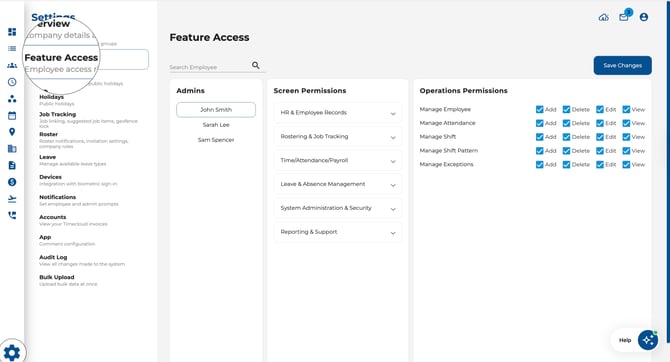
Navigate to Settings > Feature Access.
-
Select an admin from the Admins list on the left.
-
Configure their access across two areas (see below).
-
Click Save Changes when done.
.jpeg?width=670&height=363&name=Image%2024-04-2026%20at%203.52%20PM%20(1).jpeg)
Screen Permissions
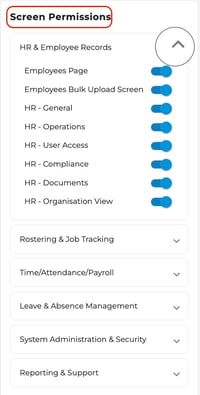
Toggle on or off which pages the admin can see:
-
Dashboard
-
Roster
-
Attendance
-
Employees
-
Leave
-
Reports
-
Settings
-
Forms
-
And more, depending on your subscription.
Operations Permissions
For each feature, set granular access using these four controls:
-
Add — Can the admin create new records?
-
Delete — Can the admin delete records?
-
Edit — Can the admin modify existing records?
-
View — Can the admin see records (read-only)?
.jpeg?width=670&height=282&name=Image%2024-04-2026%20at%203.53%20PM%20(1).jpeg)
Example
A payroll manager might only need access to the Attendance and Payroll screens with View and Edit permissions. A team lead might get access to the Roster with full Add / Edit / Delete / View.
No Admins Listed?
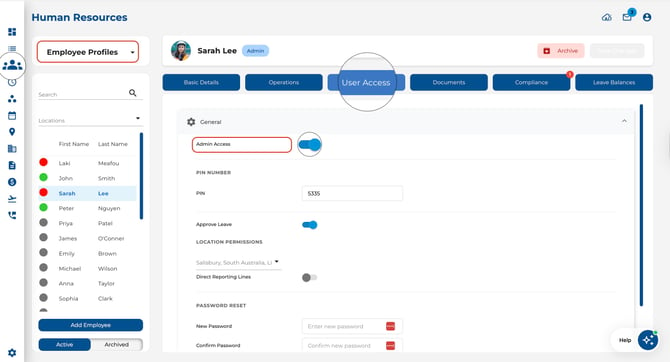
Feature Access only applies to sub-admins. To grant an employee admin access:
-
Go to Employees and select the employee.
-
Open the User Access tab.
-
Toggle on Admin Access and save.
-
Return to Settings > Feature Access — the employee will now appear in the admin list.