
The Allowances tab on the shift template lets you tie allowance entitlements to specific shifts, so employees automatically earn allowances when they work those shifts.
Timecloud supports two methods depending on your company setup:
-
Standard Allowances — used when the Awards engine is not enabled. Allowances are defined in Settings → Payroll and configured per shift.
-
Award Allowances — used when the Awards engine is enabled. Allowances are defined inside your Awards configuration and attached to shifts as triggers.
Your company will see one or the other on the Allowances tab — never both at the same time.
Option A: Standard Allowances (Awards Engine Off)
These allowances are time-based and calculated automatically from hours worked on a shift.
Prerequisites
Before you can attach recalc allowances to a shift, they must be created in Settings → Payroll:
-
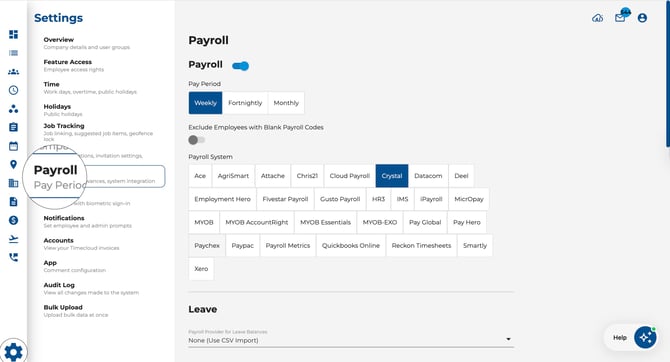
Go to Settings → Payroll.
-
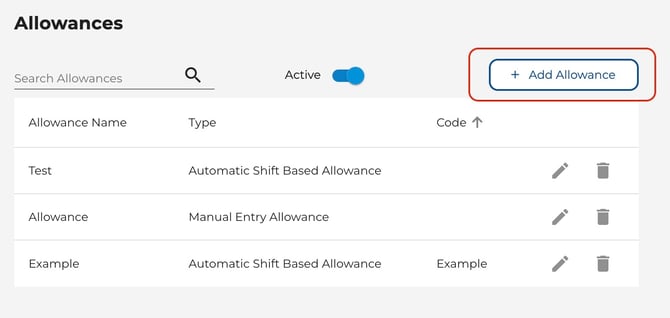
Under the Allowances section, click Add Allowance.
-
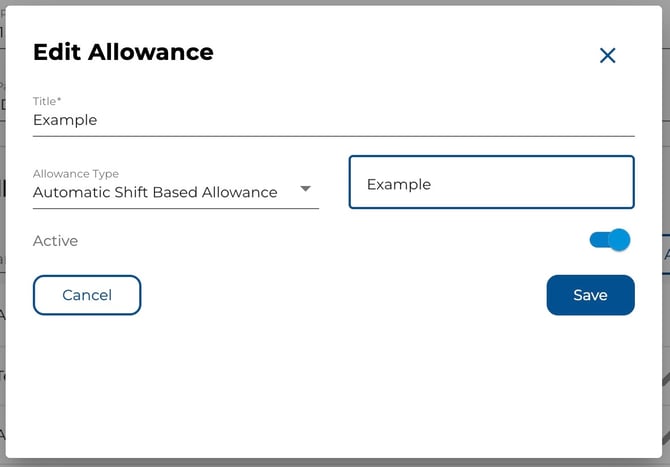
Set the Name, Code, Type (choose Automatic Shift Based Allowance for time-based), and optional company-wide defaults.
-
Toggle Active on and save.
Steps
-
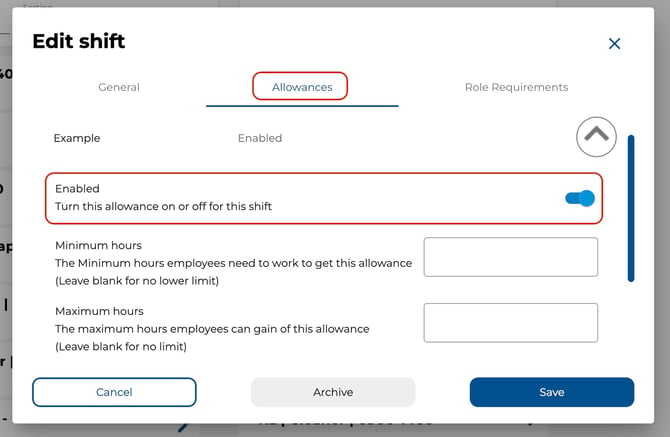
Open a shift template and navigate to the Allowances tab.
-
Each active time-based allowance from your payroll settings appears as an expandable panel.
-
Expand an allowance and toggle Enabled on.
-
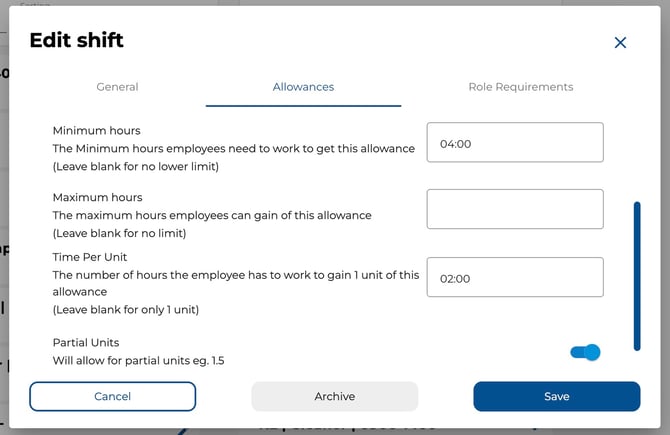
Configure the rules:
-
Minimum hours — Hours an employee must work before the allowance applies. Leave blank for no minimum.
-
Maximum hours — Cap on allowance hours earned. Leave blank for no cap.
-
Time Per Unit — Hours worked to earn 1 unit of the allowance. Leave blank for a flat 1 unit.
-
Partial Units — Toggle on to allow fractional units (e.g. 1.5).
-
-
Click Save.
Example
A warehouse shift earns a "Hazard Pay" allowance of 1 unit for every 4 hours worked, with a minimum of 2 hours before it kicks in:
-
Minimum hours: 2
-
Time Per Unit: 4
-
Partial Units: On
Option B: Award Allowances (Awards Engine On)
When the Awards engine is enabled, allowances are managed through your award rules and attached to shifts as automatic triggers.
Prerequisites
Allowances must first be configured inside your award:
-
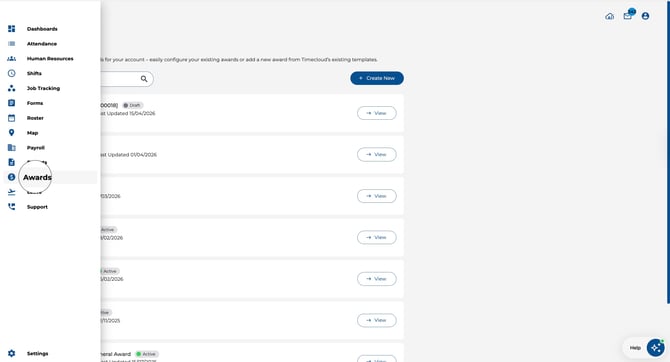
Go to Awards from the main navigation.
-
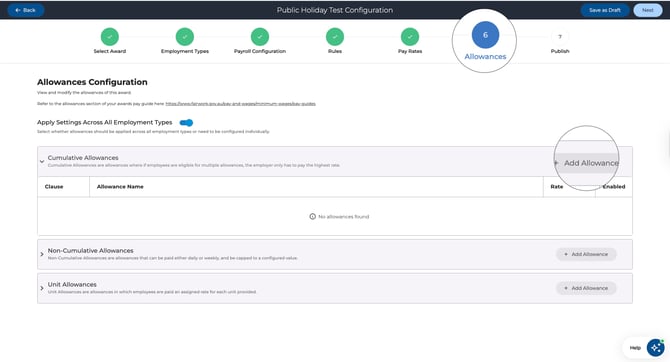
Open your award and navigate to the Allowances step.
-
Add allowances under the relevant group (Cumulative, Non-Cumulative, or Unit).
-
Publish the award version.
For full details, see How to Manage Allowances under the Awards section.
Steps
-
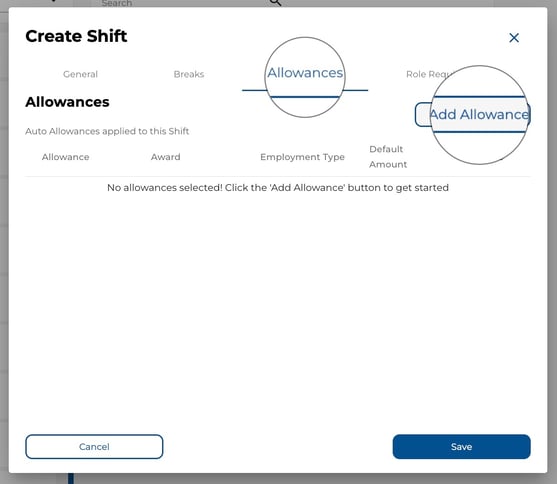
Open a shift template and navigate to the Allowances tab.
-
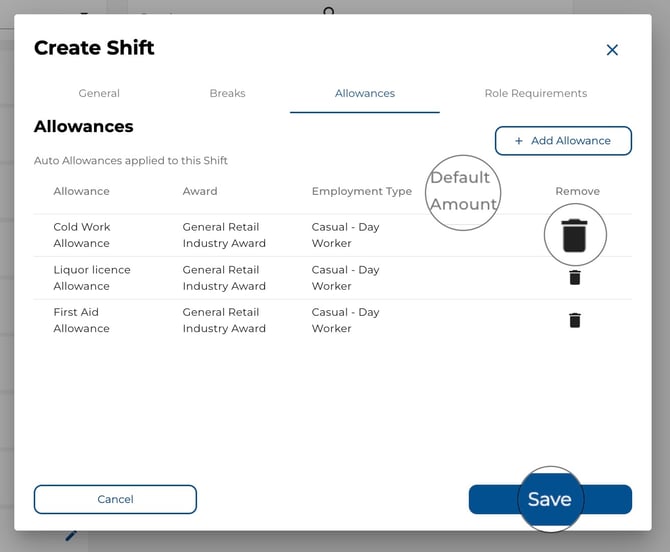
You will see a table showing any allowances already attached to this shift, with columns for Allowance, Award, Employment Type, Default Amount, and Remove.
-
Click Add Allowance.
-
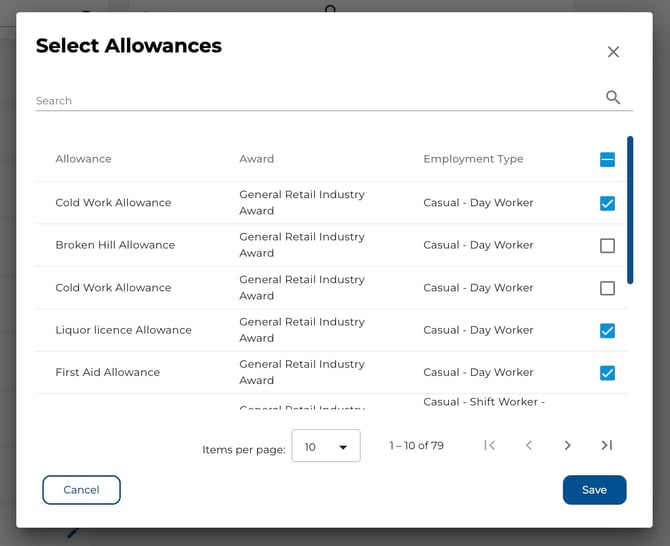
In the Select Allowances dialogue:
-
Browse or search for the allowance you need.
-
Each row shows the Allowance name, the Award it belongs to, and the Employment Type.
-
Tick the checkbox next to each allowance you want to attach. Use the header checkbox to select all.
-
Click Save.
-
-
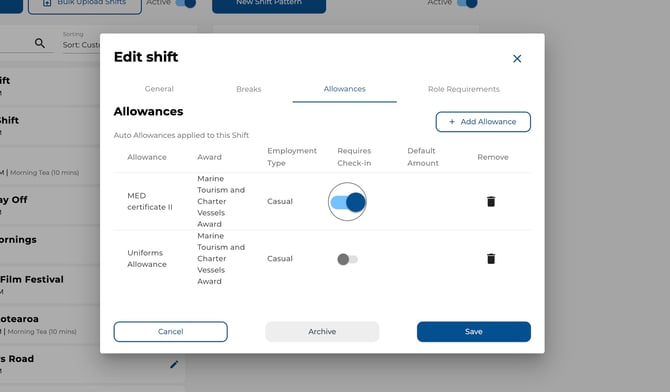
Requires Check-in Toggle
The Requires Check-in toggle determines whether an allowance is conditional on the employee completing a clock-in and clock-out:
- OFF (default) — the allowance is applied whenever the employee is rostered on or works this shift, regardless of whether they physically checked in.
- ON — the allowance is only applied if the employee has a complete working check-in pair (both clock-in and clock-out recorded).
When to use it:
- Turn it ON for allowances that should only be paid when an employee has confirmed on-site attendance (e.g., a site allowance or hazardous environment allowance).
- Leave it OFF for allowances that apply based on the shift assignment alone (e.g., a rostered shift loading).
Note: This toggle is available on shift, employee, and role allowance triggers. It does not appear on job item or leave allowances.
Example
A construction shift should automatically trigger a "Travel Allowance" (unit-based, per kilometre) and a "Site Allowance" (cumulative):
- Click Add Allowance on the shift's Allowances tab.
- Search for "Travel Allowance" — tick it.
- Search for "Site Allowance" — tick it.
- Click Save in the dialog.
- Set the Default Amount for Travel Allowance to 25 (kilometres).
- Enable Requires Check-in for Site Allowance — the employee must clock in and out to receive it.
- Save the shift.
-
Back on the Allowances tab:
-
For unit allowances, enter a Default Amount — this is the initial quantity applied when the shift is worked. Employees or managers can override this on the timesheet.
-
To remove an allowance, click the delete icon.
-
-
Click Save on the shift template.
Example
A construction shift should automatically trigger a "Travel Allowance" (unit-based, per kilometre) and a "Site Allowance" (cumulative):
-
Click Add Allowance on the shift's Allowances tab.
-
Search for "Travel Allowance" — tick it.
-
Search for "Site Allowance" — tick it.
-
Click Save in the dialogue.
-
Set the Default Amount for Travel Allowance to 25 (kilometres).
-
Save the shift.
How Do I Know Which Type I'm Using?
-
If you see expandable panels with toggle switches and hour fields → you are using Recalc Allowances.
-
If you see a table with an Add Allowance button → you are using Award Allowances.
The type is determined by whether the Awards engine is enabled for your company. Contact your administrator if you are unsure.
Tips
-
Standard allowances are best for simple, time-based entitlements that depend only on hours worked.
-
Award allowances offer more flexibility — they support cumulative, non-cumulative, and unit-based rules, and can be attached to shifts, roles, job items, and individual employees.
-
Allowance triggers on a shift apply automatically to attendance records when employees work that shift.
-
You can also manage award allowances at the employee, role, and job item level for more granular control.