
What Is It?
-
Timesheets are locked per pay period — not by a rolling date.
-
You choose how many days after the end of each period and what time of day the lock kicks in.
-
Locking respects each employee's pay period, so employees on different cycles lock at the right time.
How to Enable It
-
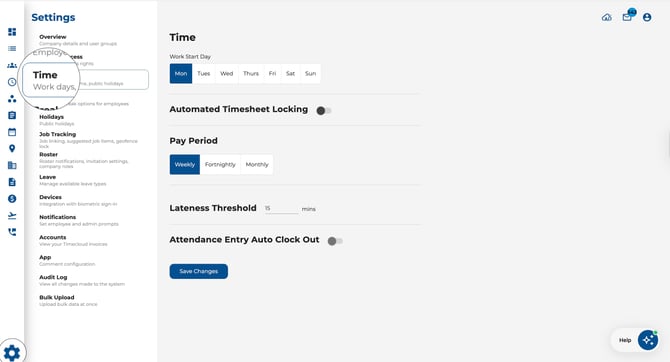
Go to Settings > Time Settings.
-
Find the Automated Timesheet Locking section.
-
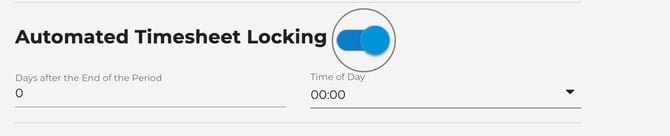
Toggle the switch on.
Configuring the Lock Timing
Once the toggle is on, two options appear:
-
Days after the End of the Period — Enter the number of days after a pay period ends before it locks. Use 0 to lock immediately when the period ends. You can also use negative values to lock before the period ends.
-
Time of Day — Select the hour (from 00:00 to 23:00) at which the lock takes effect on that day.
Example
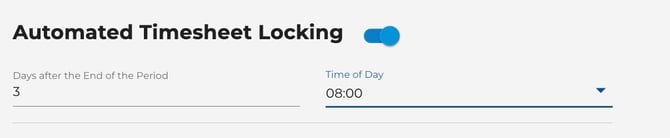
If your pay period runs Monday to Sunday and you set:
-
Days after the End of the Period: 3
-
Time of Day: 08:00
Then the period locks on Wednesday at 8:00 AM the following week (3 days after Sunday).
What Happens When a Period Is Locked
-
Timesheets become read-only — clock-in/out times, shift assignments, and breaks cannot be edited.
-
Approvals are locked — approved days cannot be unapproved, and unapproved days cannot be modified.
-
Allowances remain accessible — you can still view allowance details on locked days.
-
A locked indicator appears on each affected day in the Attendance page.
Who Can See Locked Timesheets?
-
All managers and supervisors see the lock applied on the Attendance page.
-
Company Admins are exempt from the lock and can still make changes to any period.
Tips
-
Set a small buffer (e.g. 1–3 days) to give managers time to review and approve timesheets before they lock.
-
If you need to make corrections after a lock, a Company Admin can still edit locked periods.
-
The lock timing adjusts automatically to each employee's timezone.
Related
-
Attendance & Timesheets — See how locked periods appear on the timesheet view.
-
Company Settings — Overview of all company configuration options.