
How to Create a Compliance Group
-
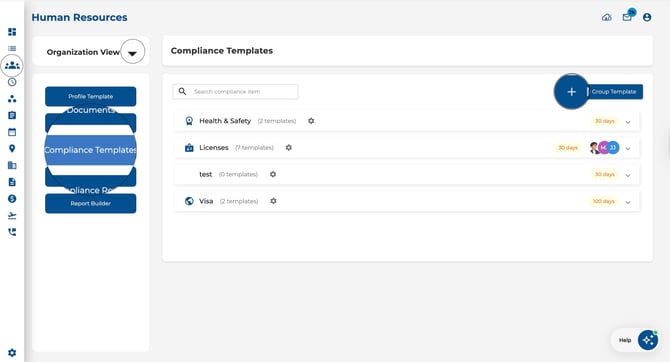
Navigate to Human Resources → Organization View → Compliance Templates.
-
Click New Group Template.
-
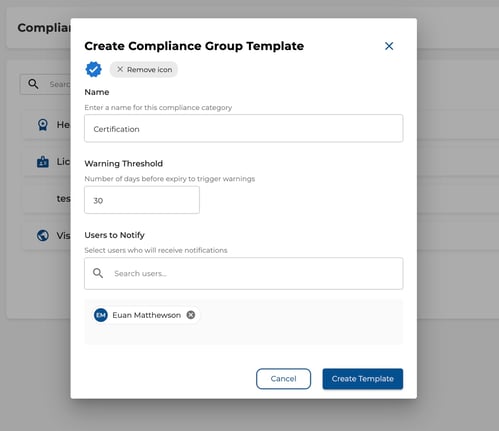
Fill in:
-
Group Name (required).
-
Warning Threshold — number of days before expiry to trigger a warning (e.g. 30 days).
-
Users to Notify — search and select employees who should receive alerts.
-
Optional icon.
-
-
Click Create Template.
How to Add Compliance Items
-
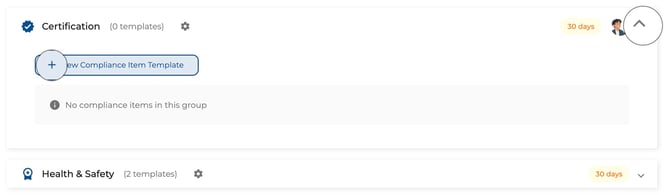
Expand a group and click New Compliance Item Template.
-
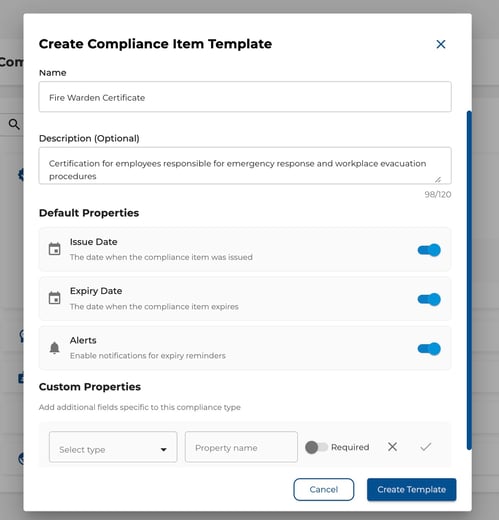
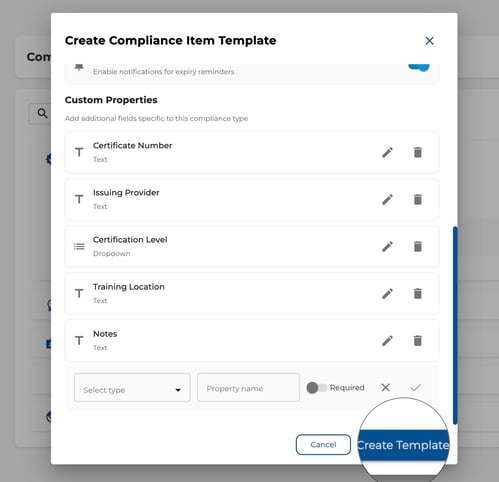
Enter the item name, optional description, and choose an icon.
-
Toggle default properties:
-
Issue Date — whether this item tracks when it was issued.
-
Expiry Date — whether this item expires.
-
Alerts — enable automatic expiry alerts (only available when Expiry Date is on).
-
-
Optionally add custom properties (Text, Number, Date, etc.) for additional data.
-
Click Create Template.
Managing Items
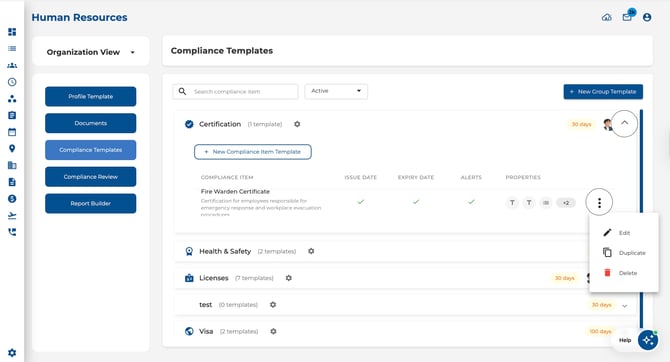
Each compliance item row shows its name, whether Issue Date / Expiry Date / Alerts are enabled, and any custom properties. Use the three-dot menu on each row to:
-
Edit the item template.
-
Duplicate the item (creates a copy you can rename).
-
Delete the item.
Archiving Groups
-
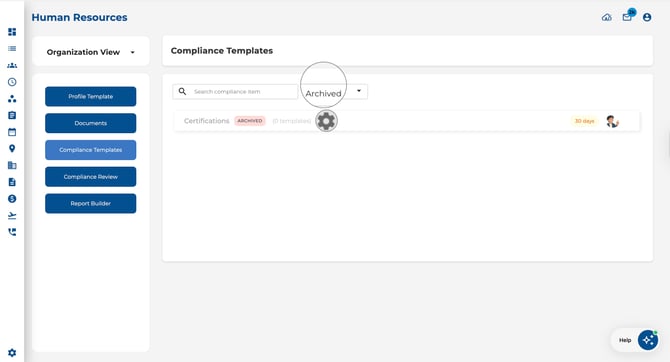
To archive a compliance group (hiding it from active use), click the settings icon on the group header.
-
Then click Archive. Archived groups are greyed out and cannot be expanded.
.jpeg?width=399&height=415&name=Image%2016-04-2026%20at%203.30%20PM%20(1).jpeg)
To restore, click settings again and choose Unarchive..jpeg?width=541&height=374&name=Image%2016-04-2026%20at%203.31%20PM%20(1).jpeg)
Use the filter dropdown (Active / Archived / All) to control which groups are visible.