
How It Works
-
You assign a Geofence (a GPS location boundary) to a job item.
-
When an employee clocks in within the configured radius of that geofence, the associated job item is automatically suggested on their device.
-
The employee can accept the suggestion or choose a different job.
Step 1 — Enable Suggested Job Items
-
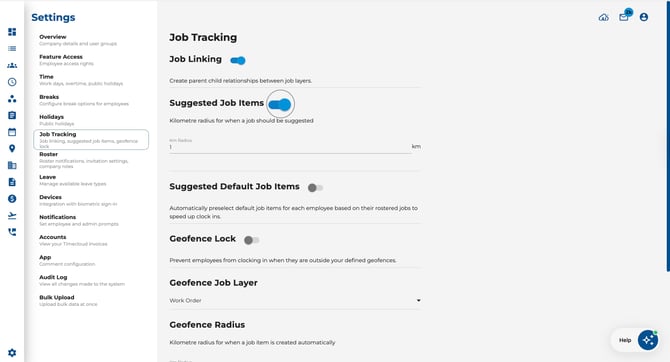
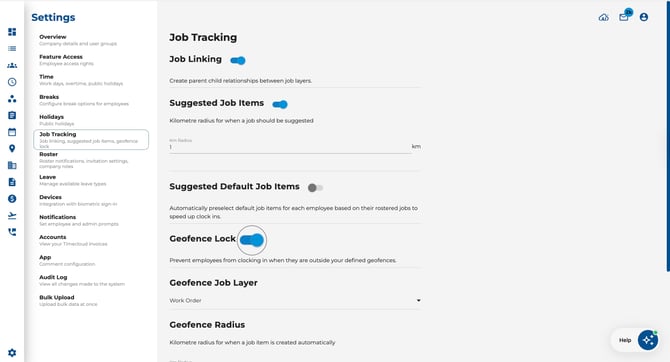
Go to Settings > Job Tracking.
.jpeg?width=670&height=363&name=Image%2016-04-2026%20at%2011.34%20AM%20(1).jpeg)
-
Toggle Suggested Job Items on.
-
Set the Km Radius — this controls how close an employee must be to a geofenced job for the suggestion to appear.
-
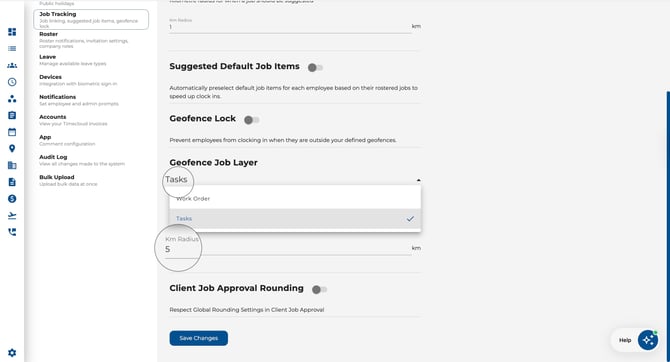
Choose the Geofence Job Layer — only items in this layer can have geofences assigned.
-
Click Save Changes.
Step 2 — Assign Geofences to Job Items
-
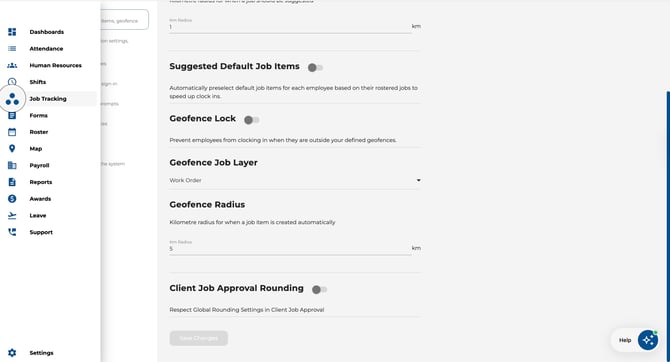
Navigate to Job Tracking from the left sidebar.
-
Click on a job item in the designated geofence layer.
-
In the detail panel on the right, select a geofence location from the Geofence dropdown.
-
The map preview shows the selected boundary.
-
Click Submit to save.
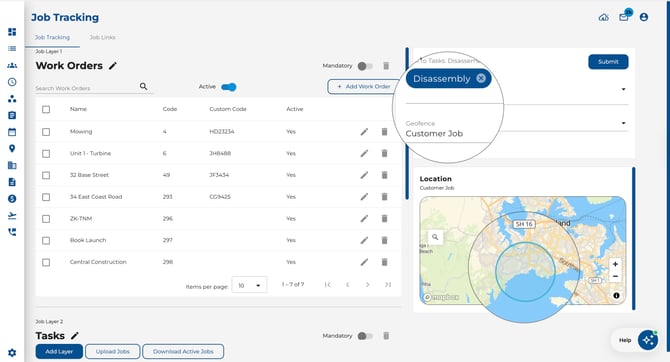
Note: Geofence locations must first be created in Settings > Devices before they appear in the dropdown.
Removing a Geofence from a Job Item
To stop a job item from triggering location-based suggestions:
- Open the job item's detail panel.
- Clear the Geofence dropdown (select the empty/blank option).
- Click Submit to save.
The job item will no longer appear as a suggestion based on employee location.
Geofence Lock (Optional)
For tighter control, enable Geofence Lock in Settings > Job Tracking. This prevents employees from clocking in at all when they are outside all defined geofences.
-
Use this for job sites where attendance must be verified by location.
-
Employees outside all geofences will see a message explaining they cannot clock in from their current location.
Suggested Default Job Items
Separately from geofence suggestions, you can enable Suggested Default Job Items in Settings > Job Tracking. When enabled, the job items assigned to an employee’s rostered shift are automatically pre-selected at clock-in — saving time and reducing manual input.