Steps to Upload Leave Balances
-
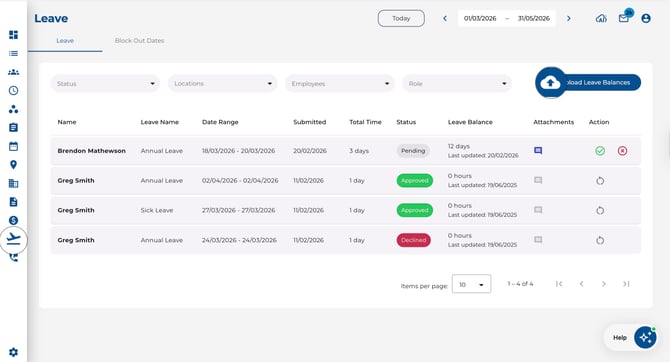
Navigate to the Leave page
-
Click Upload Leave Balances in the toolbar (this option appears when no automatic payroll sync is available)
-
Follow the three-step wizard:
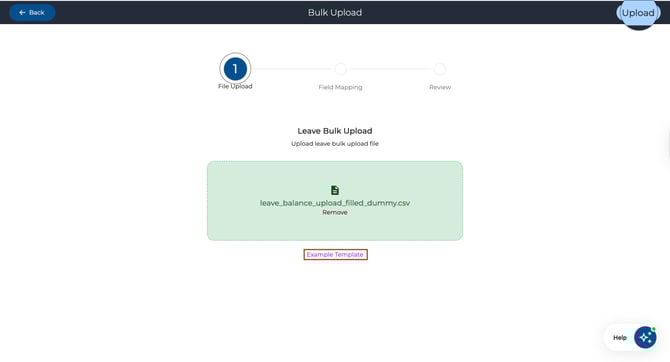
Step 1: File Upload
-
Drag and drop your file or click to browse
-
Supported formats: CSV, XLSX
-
Click Example Template to download a pre-formatted file to use as a starting point
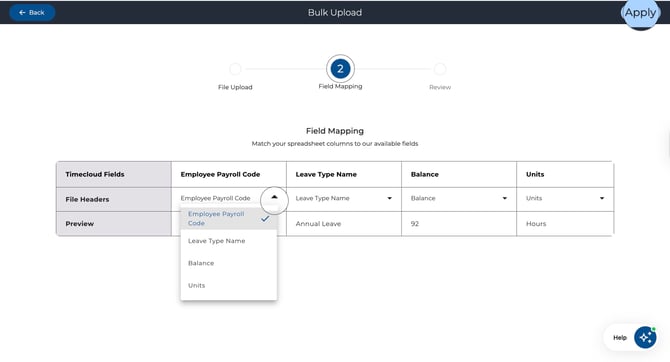
Step 2: Field Mapping
-
Map your file's columns to the required Timecloud fields:
-
Employee Payroll Code — Identifies which employee each row belongs to
-
Leave Type — The type of leave balance being updated
-
Balance — The balance amount
-
Units — Days or hours
-
A preview of the mapped data is shown below the dropdowns
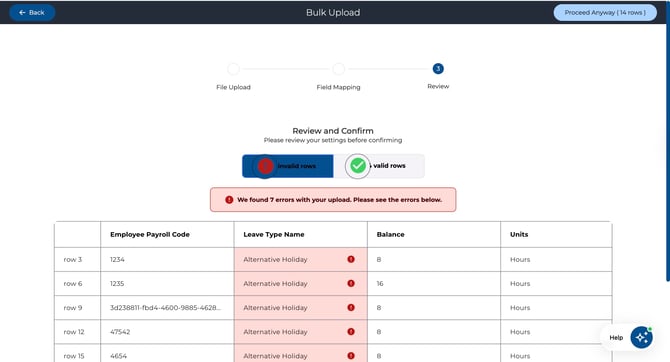
Step 3: Review
-
Review the data before confirming
-
Toggle between Valid rows and Invalid rows to check for errors
-
Error icons with tooltips highlight specific issues on each row
-
Click Next to confirm and upload
After Upload
-
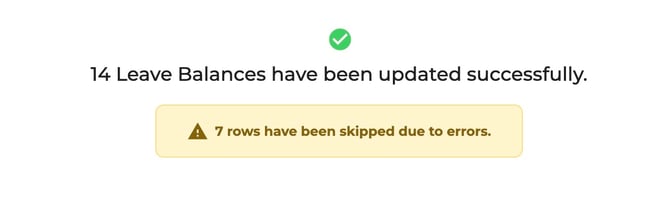
A success message shows how many balances were updated
-
Any skipped rows due to errors are also reported
-
Click Done to return to the leave page