
What Are Shift Overrides?
Every attendance row in Timecloud has up to three override buttons on the right-hand side:
-
Shift Limits — Control the shift window (start/finish times) and choose whether to cap clock-in or clock-out to those boundaries.
-
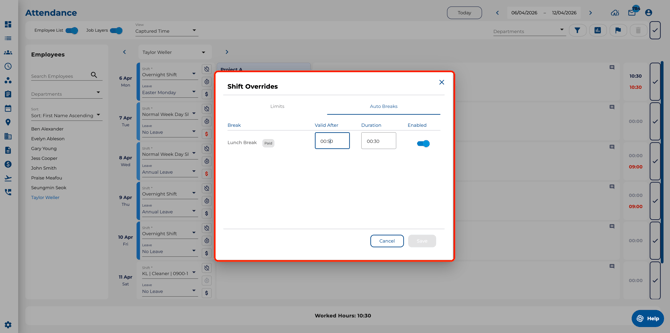
Auto Breaks — Adjust or disable the automated break rules for that specific day.
-
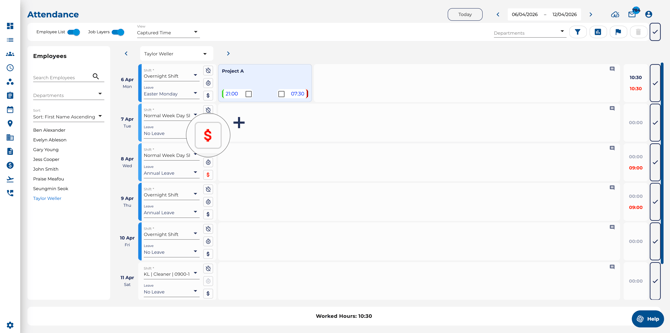
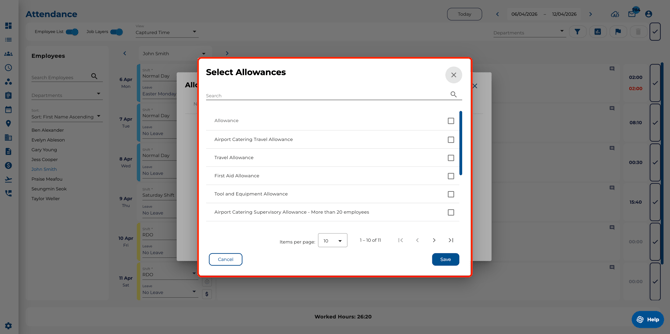
Allowances — Add or manage daily allowances (e.g. travel, meals, site allowances) for that day.
What Are Shift Limits?
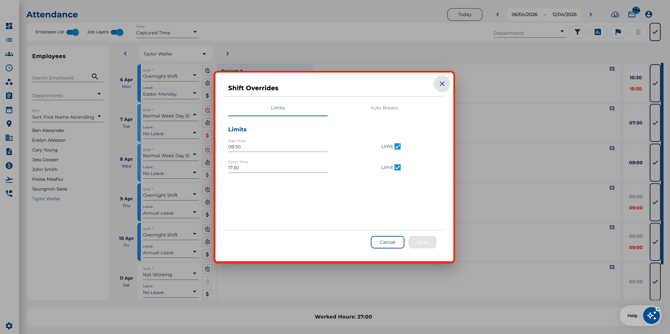
Shift limits define the expected start and finish times for a shift on a given day. When the Limit checkbox is ticked, any clock-in before the start time or clock-out after the finish time is ignored — the system uses the limit time instead.
How to Set Shift Limits
-
Navigate to Attendance & Timesheets and select an employee.
-
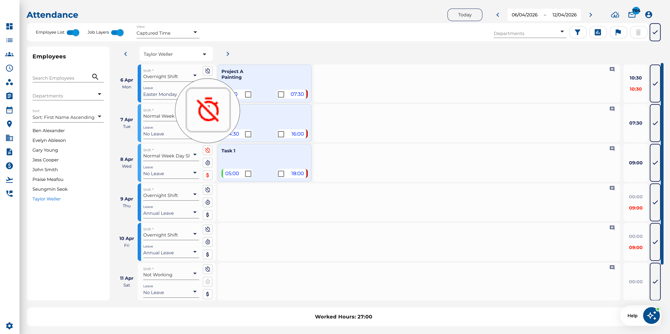
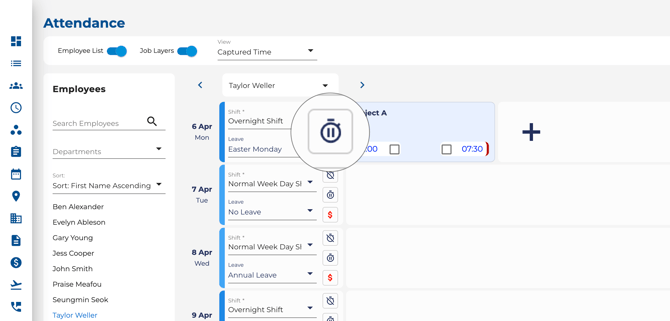
On the attendance row for the day you want to adjust, click the shift limits button (timer icon).
-
The Shift Overrides dialog opens on the Limits tab.
-
Set the Start Time and Finish Time for the shift.
-
Tick the Limit checkbox next to Start Time to cap early clock-ins.
-
Tick the Limit checkbox next to Finish Time to cap late clock-outs.
-
Click Save.
The shift limits button appears highlighted when limits are actively affecting the day's attendance.
When to Use Shift Limits
-
An employee clocked in early but should not be paid before the rostered start.
-
An employee stayed late but overtime is not approved — limit the finish time.
-
The shift window needs a one-off adjustment for a specific day without changing the shift template.
Break Overrides
-
When break management is enabled, automated break deductions are calculated per your company rules.
-
To override the automatic break on a specific day, click the break icon on that row.
-
Enter the manual override value — this replaces the calculated break for that day only.
Allowances
-
Add daily allowances (e.g. travel, meals) to individual timesheet rows where applicable.
-
These appear alongside the time entry data for that day.
Tip: Break and allowance overrides only affect the selected day — the automated rules continue to apply to all other days.