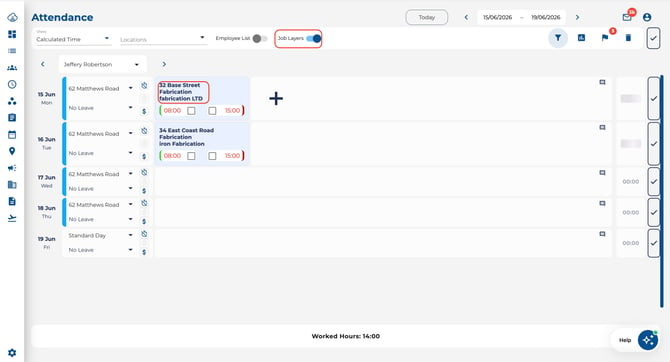
Job Costing on Timesheets
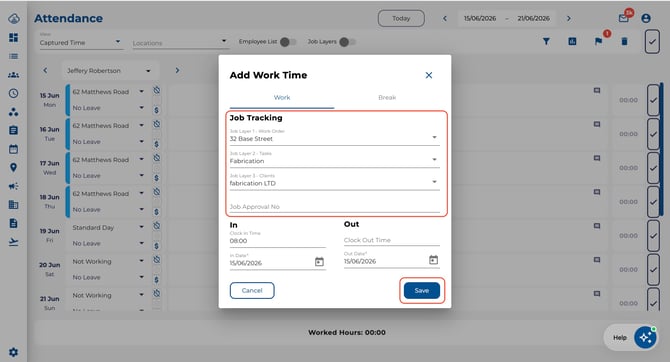
When creating or editing a time entry in the Attendance view, a Job Tracking section appears with one dropdown per job layer.
How to Assign Jobs to a Time Entry
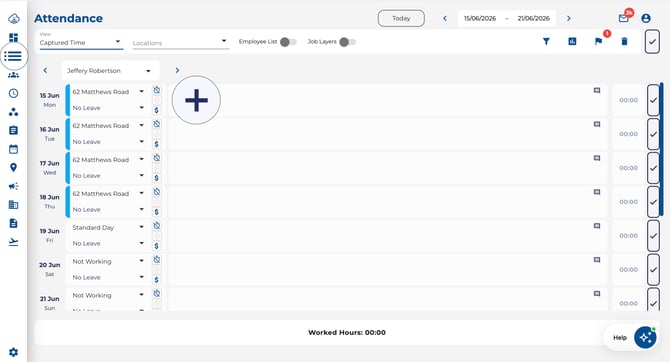
- Navigate to Attendance from the left sidebar.
- Click on an existing time entry to edit it, or click + Add to create a new one.
- In the Job Tracking section, select a job item from each layer's dropdown.
- If a layer is set to Mandatory, you must select a job item before saving.
- Click Save to record the job assignment.
What employees see
- Each mandatory layer requires a selection — the save button stays disabled until all mandatory fields are filled.
- When Suggested Default Job Items is enabled, rostered jobs are automatically pre-selected at clock-in to speed up the process.
- When Job Links are configured, selecting a parent job automatically filters the available child jobs in the next layer.
What admins see
- By default, admins creating or editing attendance records can select any job item in each layer, regardless of job links.
- When Admin Attendance Job Selection is enabled (in Settings > Job Tracking), admins see the same job link filtering as employees — selecting a parent job filters downstream layers to only show linked child jobs.
- This prevents admins from accidentally assigning unrelated jobs when editing employee time entries.
Job Costing on Rosters
When creating or editing a roster shift, managers can pre-assign job items so employees know which project they are working on before they clock in.
How to Assign Jobs to a Roster Shift
- Navigate to Roster from the left sidebar and ensure you are in the 'Employee' view.
- Create a new shift or click on an existing shift to edit it.
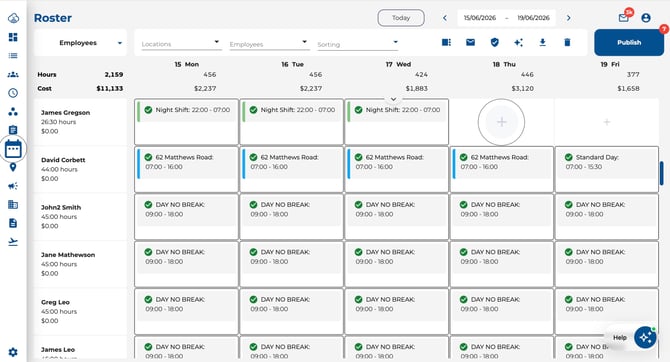
- In the Jobs section, you will see one multi-select field per job layer.
- Select the relevant job items for this shift. You can assign multiple items per layer.
- Save the shift.
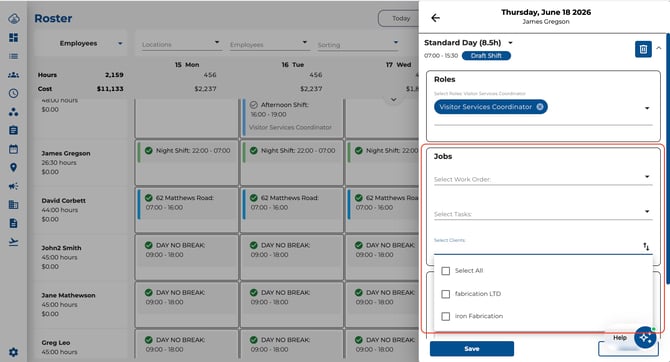
How rostered jobs help employees
- Pre-assigned jobs appear on the roster tile, giving employees visibility into their upcoming work.
- When Suggested Default Job Items is enabled in Settings, the rostered jobs are automatically pre-selected when the employee clocks in — saving time and reducing errors.
Filtering Attendance by Job
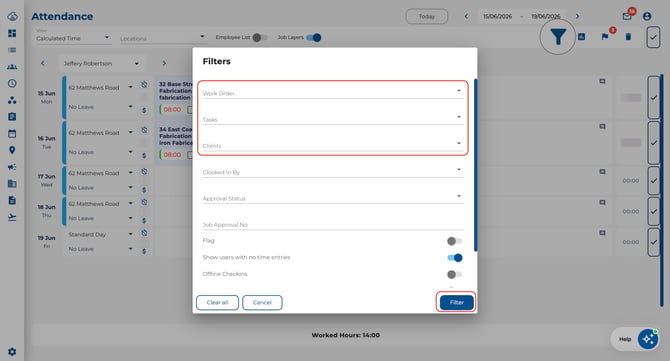
Managers can filter the attendance view by job items to see time entries for a specific project or cost centre.
- Open the Filters dialogue on the Attendance page.
- Select job items from the dropdowns for each layer.
- Apply the filter to view only matching time entries.
Expanding Job Details in Attendance
When Job Tracking is enabled, an Expand All option appears on the Attendance toolbar. Use it to show or hide job-related columns in the timesheet grid for a quick overview of job assignments across all entries.