
What Are Job Layers?
Job layers are dropdown fields configured by your administrator. Each one represents a different dimension of your work — for example:
-
Location — which office or site you're working at
-
Task — what type of work you're doing
-
Project — which project your time should be charged to
How to Fill in Job Layers
-
Open Web Punch from the left-hand sidebar.
-
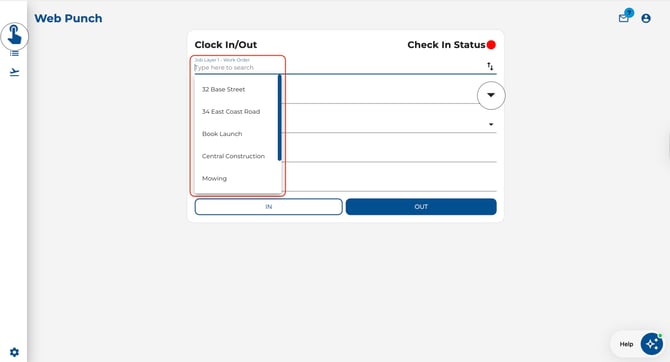
Look for the Job Layer dropdown(s) on the clock-in card.
-
Click a dropdown and either:
-
Start typing to search for a specific value, or
-
Click the arrow to browse all available options.
-
-
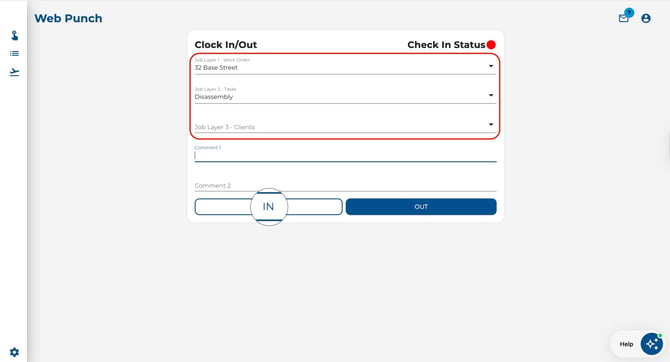
Select the appropriate value for each layer.
-
Click IN to clock in with your selected job layers.
Good to Know
-
Default values — If your administrator has configured default job items on your employee profile, those fields will be pre-filled automatically.
-
Job Linking — When job linking is enabled, selecting a value in one layer automatically filters the available options in subsequent layers. This keeps your choices relevant and reduces errors.
-
Mandatory layers — Layers marked as mandatory must be filled in before you can clock in. You'll see an error if you try to clock in with a required layer left blank.