
Before You Start
Job Linking must be enabled in Settings > Job Tracking > Job Linking. Once enabled, you can create links between job items in the detail panel (see How to Use the Job Item Detail Panel).
How to Preview Job Links
-
Navigate to Job Tracking from the left sidebar.
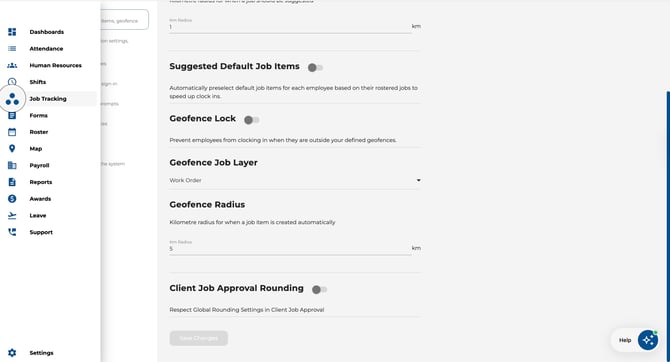
-
Click the Job Links tab at the top of the page.
.jpeg?width=644&height=349&name=Image%2016-04-2026%20at%2012.18%20PM%20(1).jpeg)
-
Select a job item from the first layer. All items in this layer are displayed as buttons.
-
The preview updates to show which items in the next layer are linked to your selection.
-
Continue clicking through connected items to walk the full chain across all layers.
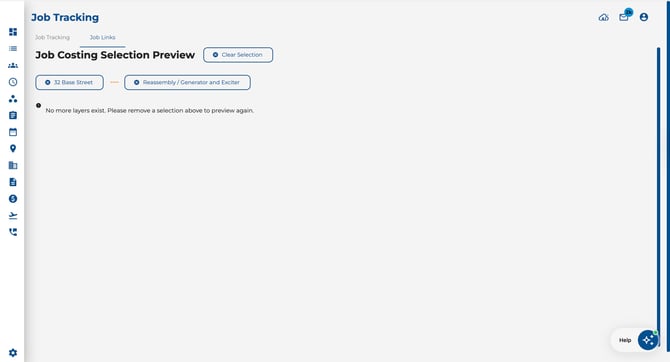
Understanding the Preview
-
Your selected items appear as highlighted buttons with dashed connectors between layers.
-
Each layer only shows items that are linked as children of your previous selection.
-
If no more layers exist, a message appears indicating you have reached the end of the chain.
.jpeg?width=670&height=88&name=Image%2016-04-2026%20at%2012.25%20PM%20(1).jpeg)
-
Use the search field to filter items within the current layer.
.jpeg?width=670&height=136&name=Image%2016-04-2026%20at%2012.25%20PM%20(2).jpeg)
How to Reset Your Selection
-
Click the remove icon on any selected item in the breadcrumb trail to step back.
-
Click Clear Selection to reset the preview and start again from scratch.
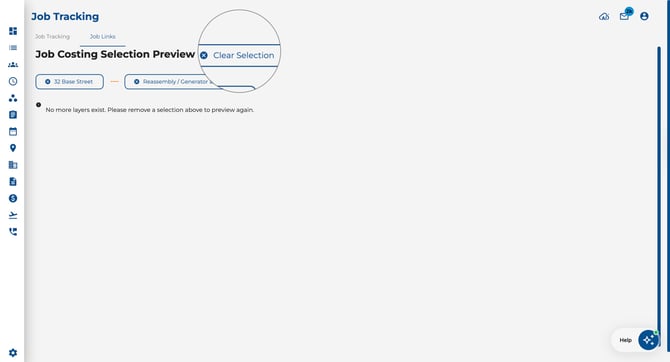
Tip: The Job Links tab is read-only — it only previews existing connections. To create or change links, use the Job Item Detail Panel on the main Job Tracking tab.