
Enabling Location Tracking
Before your location can be recorded, you need to grant permission to the Timecloud app:
iPhone
-
Go to Settings > Privacy & Security > Location Services.
-
Find Timecloud and select While Using the App.
Android
-
Go to Settings > Apps > Timecloud > Permissions > Location.
-
Select Allow only while using the app.
If prompted by the app, tap Allow to grant location access.
GPS with Clock-In
-
When you tap Clock In, your GPS coordinates are automatically captured.
-
This location is attached to your check-in record.
-
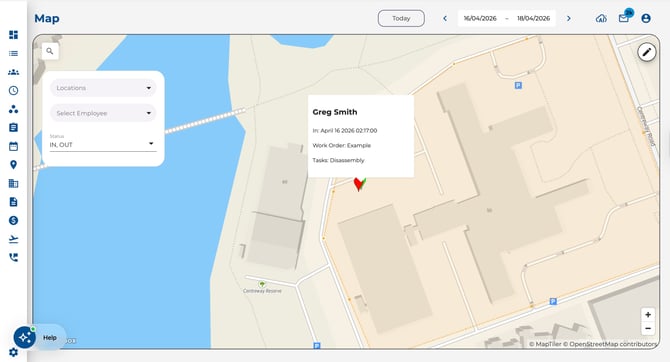
Managers can view your clock-in location on the attendance map.
Geofence-Locked Attendance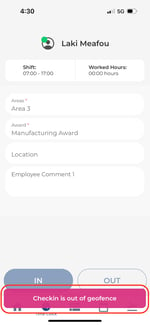
If your company uses geofencing:
-
Clock-in is restricted to approved locations (geofences).
-
If you are outside the allowed area, you will see a message explaining that you cannot clock in from your current location.
-
Move to an approved location and try again.
What is a geofence? A geofence is a virtual boundary around a physical location (e.g. your office or work site). Your company sets these up in the web app.
Location on Employee Cards (Managers)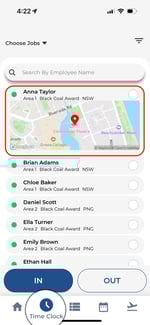
If you are a manager:
-
Open the punch board to see all clocked-in employees.
-
Each employee card shows a map pin with their clock-in location.
-
Tap an employee to view their location on a map.
Troubleshooting Location Issues
-
Location not recording? Make sure location permissions are set to "While Using the App".
-
GPS inaccurate? Move to an open area with a clear view of the sky. Indoor locations may reduce accuracy.
-
Geofence error? Confirm you are within the approved area. If the issue persists, contact your manager or admin.