
Manager View Toggle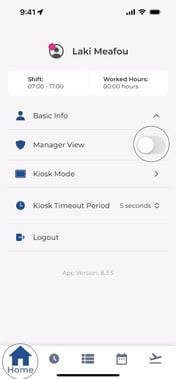
-
Open your Profile or Settings in the app.
-
Toggle Manager View to switch between:

-
Employee mode — your personal clock-in, timesheet, and leave
-
Manager mode — your team's attendance and management tools
-
Viewing and Managing Employees on the Punch Board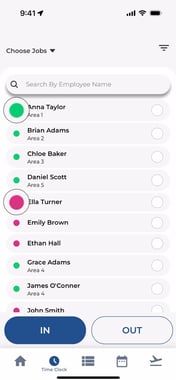
-
In manager mode, the Punch Board shows all employees and their current status:
-
Clocked In — currently working
-
Clocked Out — not currently working
-
On Break — on an active break
-
-
Tap an employee to view their details, clock-in time, and location.
Filtering by User Group, Job, or Status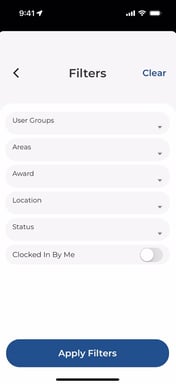
-
Use the filter bar at the top of the punch board.
-
Filter by:
-
User group (department)
-
Job item or cost code
-
Clock-in status (In, Out, On Break)
-
-
Use the search bar to quickly find a specific employee by name.
.jpeg?width=495&height=88&name=Image%2017-04-2026%20at%201.58%20PM%20(1).jpeg)
Adding Attendance for Employees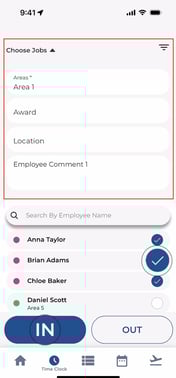
-
From the punch board, select an employee.
-
Tap Add Attendance to manually create a clock-in/out entry on their behalf.
-
Enter the start time, end time, and any required job items.
-
Tap Save.
Approving and Declining Leave Requests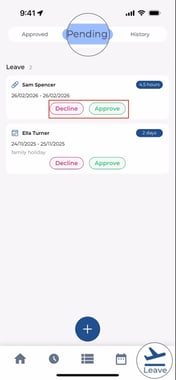
-
Go to the Leave section in manager mode.
-
Open the Pending tab to see requests from your team.
-
Tap a request to review the details.
-
Tap Approve or Decline.
-
If the employee has insufficient leave balance, you may choose to override.
Client Job Approval Management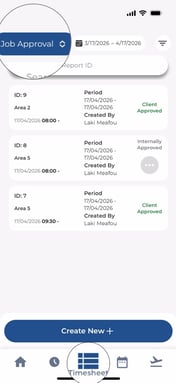
-
Go to the Approval Reports section.
-
View submitted approval reports from your team.
-
Review entries, check for disputes, and manage approval workflows.
-
Reports can be filtered by status: Draft, Internal Approved, or Client Approved.