
Adding a Report to Favourites
-
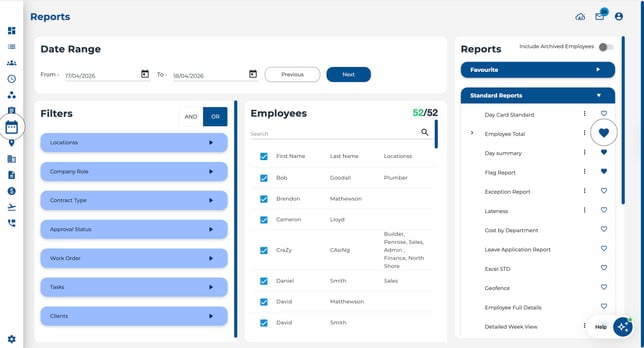
On the Reports page, find the report you want to favourite.
-
Click the heart icon next to the report name.
-
The report now appears in the Favourites group at the top of the list.
.jpeg?width=670&height=363&name=Image%2017-04-2026%20at%2012.25%20PM%20(1).jpeg)
Removing a Report from Favourites
-
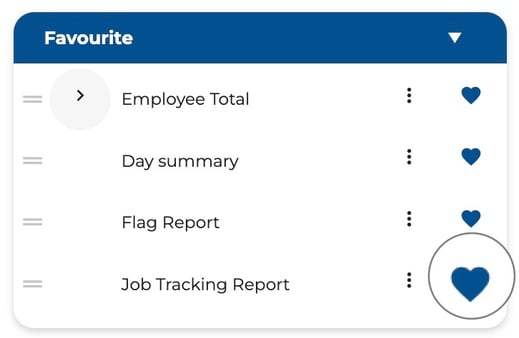
Find the report in the Favourites group (or in its original group).
-
Click the heart icon again to unfavourite it.
-
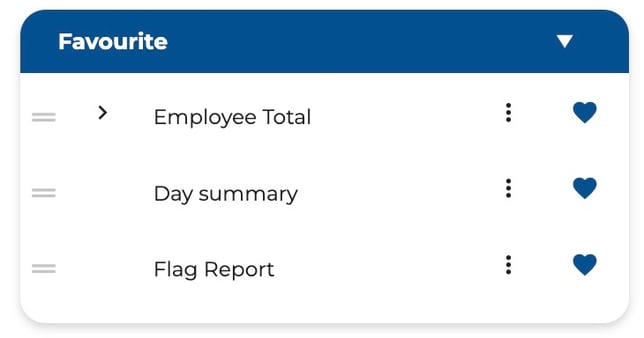
The report is removed from the Favourites group.
Reordering Favourites
You can arrange your favourited reports in any order:
-
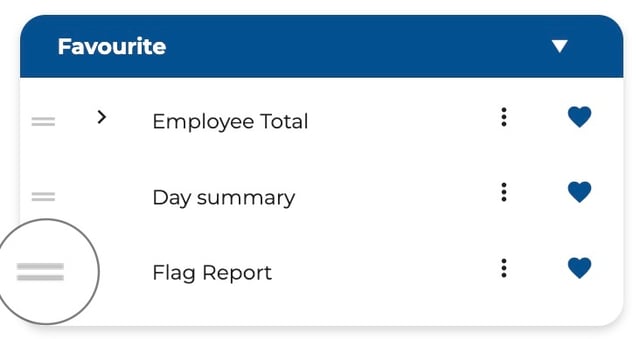
In the Favourites group, look for the drag handle on the left side of each report.
-
Click and hold the drag handle.
-
Drag the report up or down to your preferred position.
-
Release to drop it in place.
-
Your custom order is saved automatically.
What Can Be Favourited
-
Any top-level report can be favourited.
-
Alternate Versions and Legacy Versions of reports can also be favourited individually.
-
When a variant or legacy version is favourited, it appears in the Favourites group alongside regular reports.
How Favourites Are Saved
-
Favourites are saved per user — each team member has their own list.
-
Your favourites persist between sessions, so they are always there when you return.
Quick Tips
-
Favourite the reports you use every pay period so they are always one click away.
-
Drag and drop to put your most frequent reports at the very top.
-
Expand the Favourites group to see all your pinned reports at a glance.