
Where to Find It
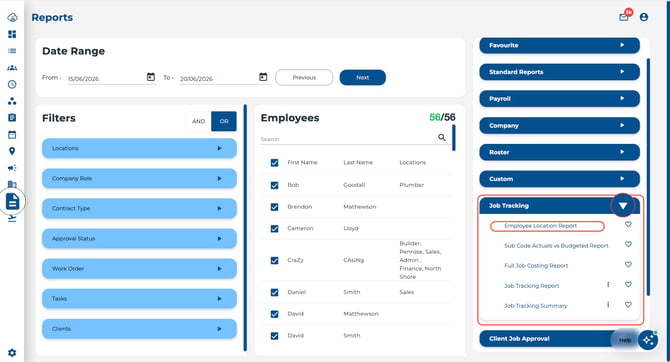
- Go to Reports from the main navigation.
- In the Reports panel on the right, look under the Job Costing group.
- Click Employee Location Totals to download the report.
Report Columns
Each row represents a single check-in/check-out pair for an employee:
- Location — The device location name (or device serial number if no location is set).
- First Name / Last Name — The employee's name.
- Date — The date of the attendance record.
- In — Clock-in time.
- Out — Clock-out time.
- Total — Hours worked for that pair.
- GeoFence On In — Whether the employee was inside the geofence at clock-in (Y or N).
- GeoFence On Out — Whether the employee was inside the geofence at clock-out (Y or N).
- Latitude on In / Longitude on In — GPS coordinates captured at clock-in.
- Latitude on Out / Longitude on Out — GPS coordinates captured at clock-out.
- Est. Address on In — Estimated street address at clock-in.
- Est. Address on Out — Estimated street address at clock-out.
- Employee Comment 1 / Employee Comment 2 — Any comments the employee entered during the punch.
GPS coordinates and addresses are captured from mobile app clock-ins and clock-outs only.
How the Data Is Organised
The report groups results by device (or location), then by employee within each device:
- Each device/location block starts with the employee's punches for the selected period.
- A subtotal row appears after each employee's entries.
- A location total row appears at the end of each device/location block.
Quick Tips
- Use this report to verify geofence compliance — check whether employees are clocking in and out within approved areas.
- GPS data requires the mobile app — punches from biometric scanners or web punch do not capture coordinates.
- Pair this report with your geofence settings to get the most out of location tracking.