
Opening the Detail Panel
-
Navigate to Job Tracking from the left sidebar.
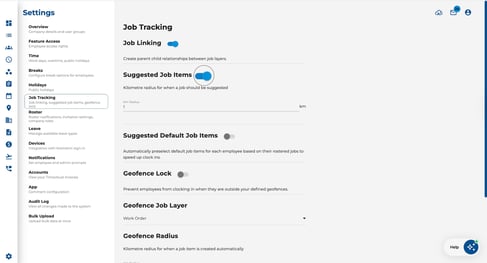
-
Click on any job item row in the table.
.jpeg?width=487&height=326&name=Image%2016-04-2026%20at%2012.39%20PM%20(1).jpeg)
-
The detail panel opens on the right side of the screen.
.jpeg?width=401&height=452&name=Image%2016-04-2026%20at%2012.39%20PM%20(2).jpeg)
How to Link Job Items Across Layers
When Job Linking is enabled (in Settings > Job Tracking), you can create parent-child relationships between job items in different layers.
-
Select a job item to open the detail panel.
-
Use the parent layer chip-select field to link this item to one or more items in the layer above.
-
Use the child layer chip-select field to link to items in the layer below.
-
Click Submit to save your changes.
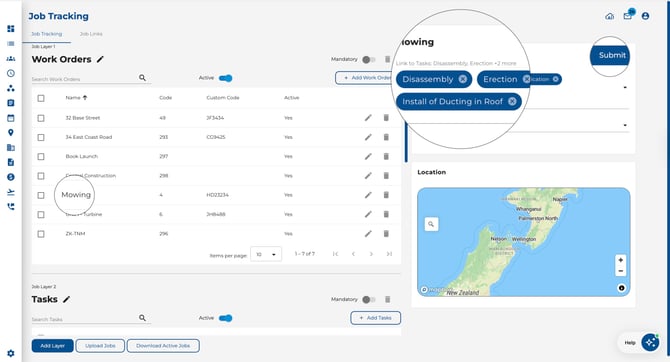
Why use linking? When job items are linked, selecting a parent item during clock-in or on the roster automatically filters the available child items. This makes it faster and easier for employees to select the correct combination.
How to Assign a Geofence to a Job Item
Assigning a geofence enables location-based job suggestions when employees clock in via the mobile app.
-
Select a job item from the layer that is configured as your Geofence Job Layer (set in Settings > Job Tracking).
-
In the detail panel, choose a geofence location from the Geofence dropdown.
-
The map preview below shows the selected geofence boundary.
-
Click Submit to save.
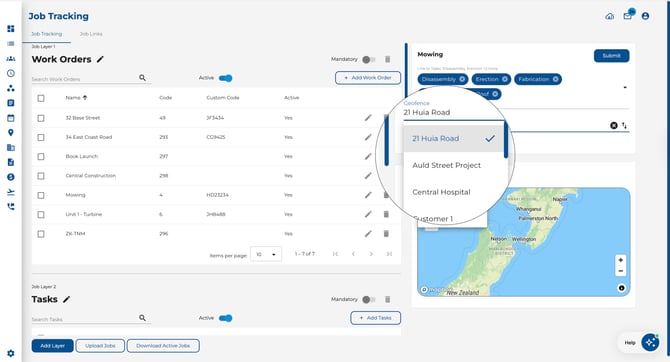
Note: The Geofence dropdown is only editable for job items in the layer designated as the Geofence Job Layer. Items in other layers will show the geofence field as read-only.
How to Remove a Geofence from a Job Item
If a job item no longer needs location-based suggestions, you can clear its geofence assignment.
- Select the job item to open the detail panel.
- Clear the Geofence dropdown (select the empty/blank option).
- Click Submit to save.
The job item will no longer trigger location-based suggestions when employees clock in near the previously assigned geofence.