
Clocking In and Out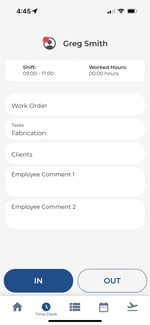
-
Tap the Time Clock tab.
-
Tap the Clock In button to start your shift.
-
When you are finished, tap Clock Out to end your shift.
-
A confirmation will appear showing your check-in or check-out time.
Clock-In Status Indicators
Your current status is displayed at the top of the Time Clock screen:
|
Status |
Meaning |
|---|---|
|
In |
You are currently clocked in |
|
Out |
You are not clocked in |
|
On Break |
You are on an active break |
Job Costing at Clock-In
If your company uses job costing: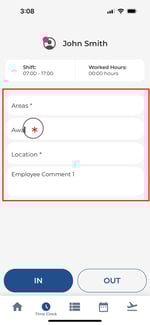
-
The job item selectors appear on the Time Clock screen before you tap Clock In.
-
Select an item from each available job layer (e.g. Client, Project, Task).
-
If a job layer is marked as mandatory, you must select an item before you can clock in.
-
Once your selections are made, tap Clock In to start your shift with the chosen job items attached.
Clock-In Photo Capture.png?width=150&height=326&name=Untitled%20design%20(46).png)
If your company requires photo verification:
-
After tapping Clock In, your camera will open automatically.
-
Take a selfie — this is attached to your check-in record for verification.
-
The photo is stored securely and visible to your manager.
Breaks
Starting and Ending a Break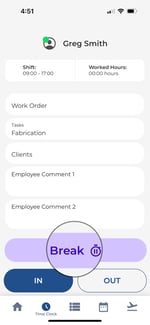
-
While clocked in, tap the Start Break button.
-
When your break is over, tap End Break to resume work.
Break Types
-
If your company has configured multiple break types, you will be asked to select one (e.g. Paid Break, Unpaid Break).
-
Choose the appropriate type before starting your break.
Missed Break Confirmation
-
If you clock out without taking a scheduled break, a Missed Break prompt may appear.
-
Review the break details and confirm or edit as needed.
Break Countdown Timer
-
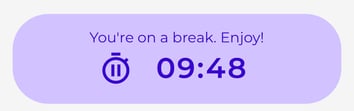
While on break, a countdown timer shows how much break time remains.
-
This helps you return to work on time.
GPS Location at Clock-In
-
If location sharing is enabled, your GPS coordinates are captured when you clock in.
-
Make sure Location Services are turned on for the Timecloud app.
-
Your location appears on your check-in record and is visible to managers.
Filtering Employees (Managers)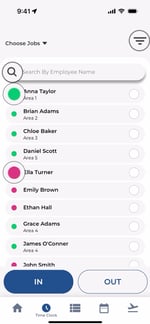
If you are a manager viewing the employee punch board:
-
Use the search bar to find specific employees.
-
Apply filters by group, job, or clock-in status to narrow the list.
Triggered Forms
-
Some companies require you to complete a form when clocking in or out.
-
If a triggered form is configured, it will appear automatically after you tap Clock In or Clock Out.
-
Complete all required fields and tap Submit.
Wellbeing Check-In
-
If your company uses the ThinkLadder integration, a wellbeing prompt may appear during clock-in.
-
Rate how you are feeling and submit your response.
-
This is a confidential check-in designed to support employee wellbeing.