
Viewing Submissions
- Navigate to Forms from the main menu.
- Click the group that contains your form
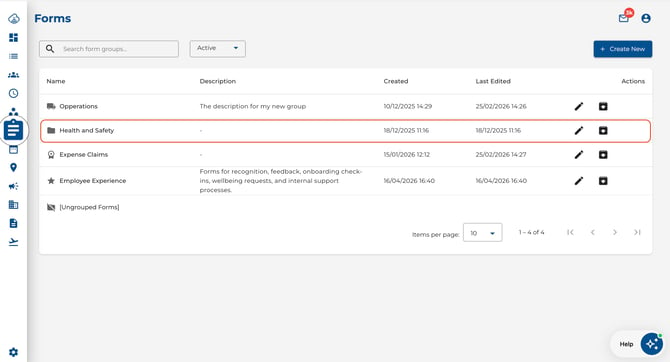
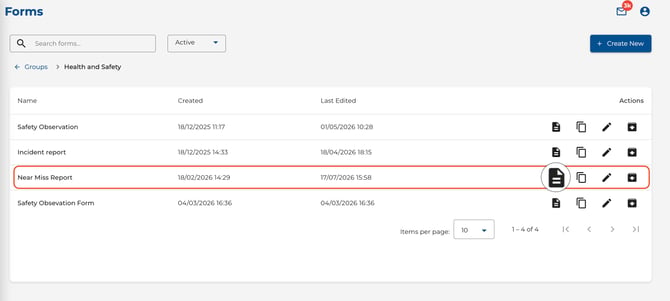
- Then click the form row to open its submissions. A breadcrumb trail appears at the top (e.g. Groups > Safety Checklists > Submissions). Click any breadcrumb segment to jump back to that level.
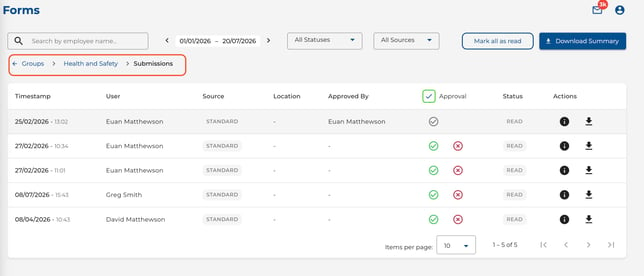
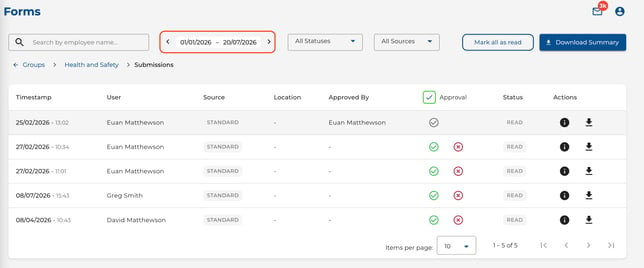
- Use the date range picker to filter by date (defaults to the last 3 months).
- Use the search bar to find submissions by employee name.
.jpeg?width=644&height=270&name=Image%2028-07-2026%20at%204.22%20PM%20(1).jpeg)
Unread and Read Tracking
Every submission has a personal read status that is tracked per user — what you mark as read does not affect other team members.
- The Status column shows an Unread (red) or Read (grey) badge on each row.
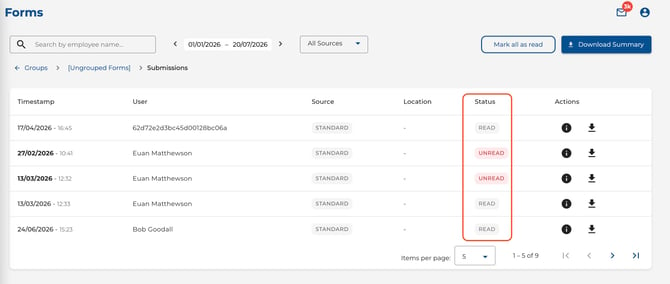
- Unread submissions appear with bold dates so they stand out at a glance.
.jpeg?width=670&height=282&name=Image%2028-07-2026%20at%204.35%20PM%20(1).jpeg)
- Opening a submission to view it or downloading its PDF automatically marks it as Read.
Mark All as Read
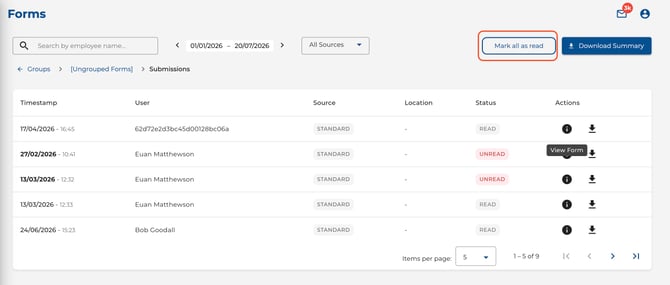
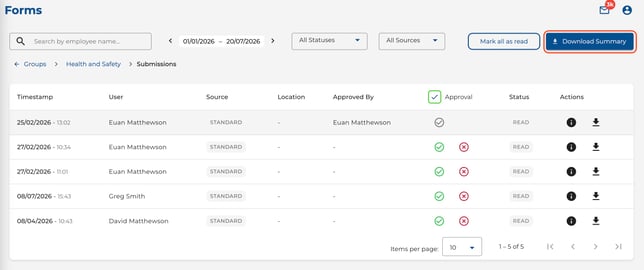
- Click the Mark all as read button at the top of the submissions table to mark every submission in the current form as read in one action.
Unread Badge on the Forms List
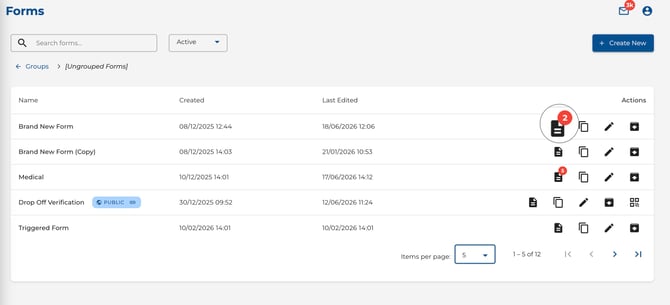
- On the main forms list, a red badge appears on the View Submissions icon showing how many unread submissions a form has.
- The badge updates automatically when you navigate back from submissions.
Reviewing a Submission
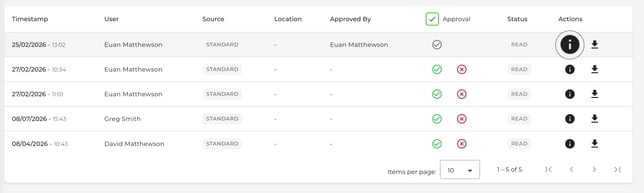
- Click the info icon on any row to open a read-only view of the full submission.
- This includes all answers, uploaded photos, and signatures.
Exporting Submissions
- Download PDF — click on a row to export a single submission as a PDF.
.jpeg?width=644&height=196&name=Image%2028-07-2026%20at%204.39%20PM%20(1).jpeg)
- Download Summary — export all filtered submissions as a CSV file.
Approving Submissions
If Require Approval is enabled on the form:
- Use the Approval Status filter to view Pending, Approved, or Declined submissions.
.jpeg?width=644&height=268&name=Image%2028-07-2026%20at%204.40%20PM%20(1).jpeg)
- Click Approve or Decline on individual rows.
.jpeg?width=644&height=190&name=Image%2028-07-2026%20at%204.40%20PM%20(2).jpeg)
- Use Approve All to bulk-approve all visible pending submissions.
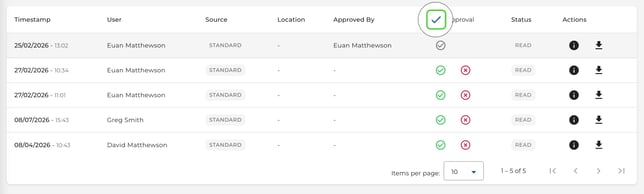
- Click Reset to return an already-actioned submission back to Pending.
.jpeg?width=644&height=192&name=Image%2028-07-2026%20at%204.41%20PM%20(1).jpeg)
Tips
- Click a form row to jump straight to its submissions — the breadcrumb lets you navigate back to the group or groups list at any time.
- The red unread badge on the forms list gives you an instant overview of which forms need attention — no need to click into each one.
- Use Download Summary regularly to keep an offline record of submissions for compliance.
- Check the Pending filter daily to ensure submissions aren't waiting too long for approval.
- Use Mark all as read to clear your unread count after reviewing a batch of submissions.