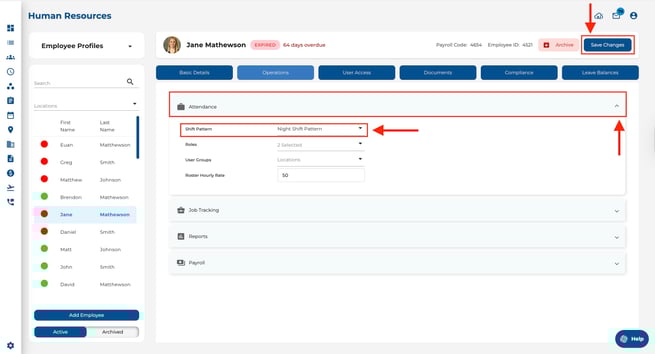
Assign Shift Patterns to Employees via Employee Page
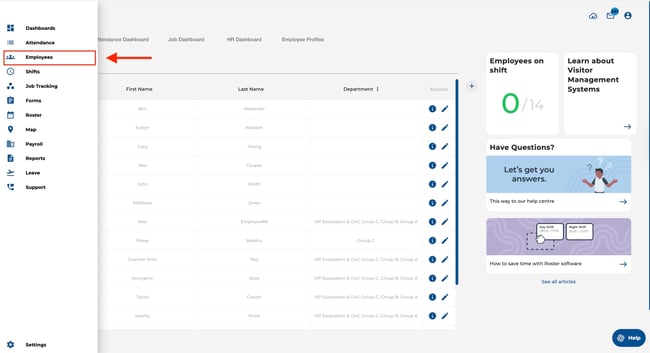
Open the Employee Page using the navigation bar on the left of your screen.
- Click on the employee's name you wish to assign a shift pattern to from the list on the left.
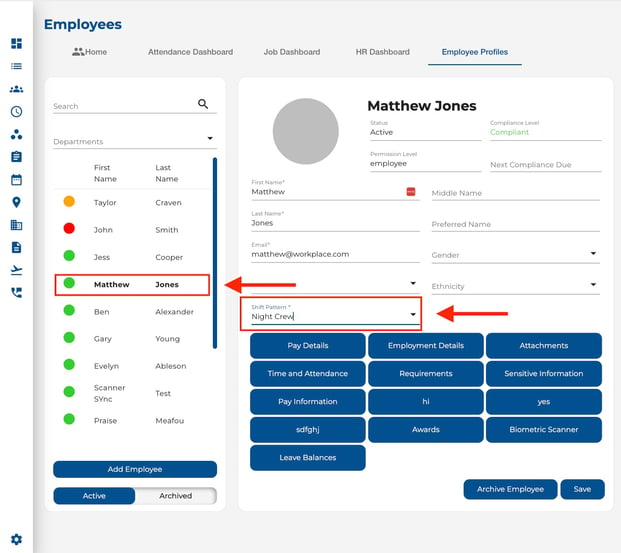
- Find the shift pattern dropdown located in the middle panel.
- Use the dropdown menu to select the desired shift pattern.
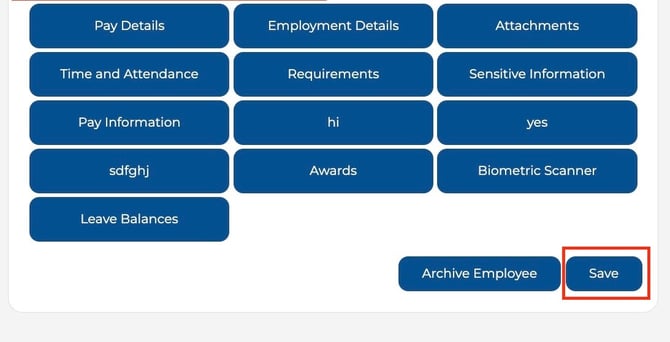
- Click save at the bottom of the panel.
Assign Shift Patterns to Employees via HR view
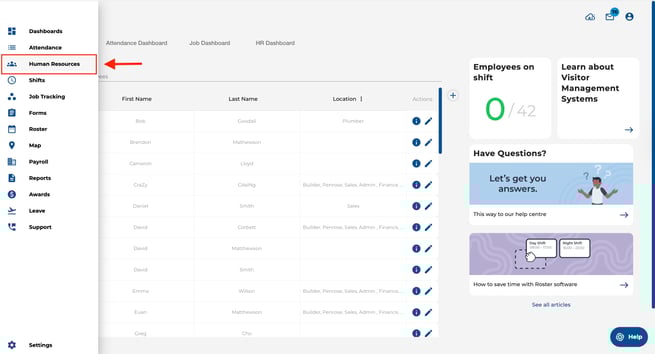
- Open the Human Resources Page using the navigation bar on the left of your screen.
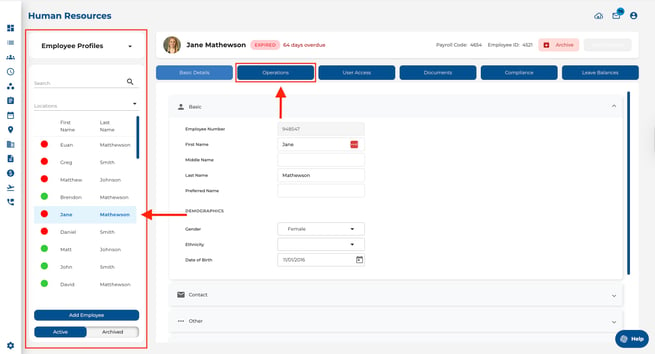
- Click on the employee's name you wish to assign a shift pattern to from the list on the left and open the ‘Operations’ page.
- Find the ‘Attendance’ dropdown.
- Use the ‘Shift Pattern’ dropdown menu to select the desired shift pattern.
- Click save at the bottom of the panel.